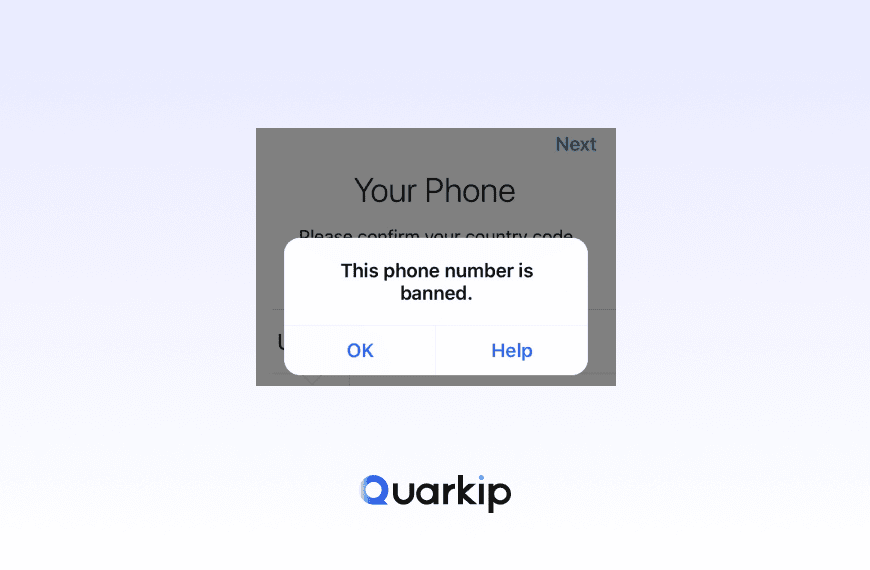
If your LINE verification code is not received, repeatedly requesting another code is usually not the best first step. The problem may come from an unsupported phone number, incorrect country settings, SMS filtering, carrier restrictions, verification limits, or the type of SIM or device you’re using.
There is another important detail many older troubleshooting guides miss: LINE’s current phone-number verification rules vary by region. In supported regions, LINE requires an eligible mobile number that can receive SMS or phone calls, and virtual phone numbers may not work for verification.
This guide explains why LINE verification codes fail to arrive, what to check first, how to use Call me instead, and what to do when LINE displays a verification error.
Quick Answer: What to Do If Your LINE Verification Code Is Not Received
If LINE is not sending you a verification code, try these steps in order:
- Confirm that LINE phone-number verification is supported in your country or region.
- Check the country code and phone number you entered.
- Make sure you’re using a mobile number capable of receiving SMS.
- Avoid virtual, VoIP, landline, or data-only numbers.
- Disable SMS spam filters and message blocking temporarily.
- Allow messages and calls from unknown or international numbers.
- Check whether your mobile carrier is blocking verification messages.
- Avoid requesting codes repeatedly within a short period.
- Try LINE’s Call me instead option if it is available.
- If the issue continues, wait before attempting verification again or contact LINE support.
In many cases, the problem can be identified within the first five steps.
Why Is My LINE Verification Code Not Arriving?
There is no single reason why a LINE SMS code might not arrive.
A verification request travels through several systems:
LINE → SMS/voice delivery provider → mobile carrier → SIM → phone → messaging app
A failure anywhere in this chain can prevent the code from reaching you.
Let’s look at the most common causes.
1. Your Phone Number Is Not Eligible for LINE Verification
Before troubleshooting your phone, make sure the number itself can actually be used for LINE verification.
LINE currently states that certain numbers and devices cannot be used for phone-number verification, including:
- Landline numbers
- Virtual phone numbers
- Data-only SIM cards without SMS support
- Wi-Fi-only devices
- Mobile numbers from unsupported countries or regions
LINE also specifically notes that numbers beginning with 050 and virtual phone numbers cannot be used when creating an account in applicable regions.
If you’re using an online SMS number, temporary number, VoIP number, or similar service, changing your phone settings is unlikely to solve the problem.
What to do
Use a normal mobile number issued by a supported mobile carrier and confirm that the plan can receive SMS messages or voice calls.
2. LINE Phone Verification Is Not Available in Your Region
This is one of the most overlooked causes of LINE verification problems.
LINE’s current help documentation states that phone-number verification is available when using LINE in:
- Hong Kong
- Japan
- South Korea
- Taiwan
- Thailand
Phone-number-based account features may work differently outside these regions.
That means seeing a phone-number verification problem does not automatically mean the SMS system is broken. The number, current LINE environment, or account-transfer method may simply not qualify for that verification flow.
What to do
First check whether phone verification is available for your location and account situation.
If you are transferring an existing account from another country, LINE may offer another login or transfer method instead of ordinary SMS verification.
3. You Entered the Wrong Phone Number or Country Code
This sounds obvious, but it is one of the easiest mistakes to make.
For example, a user may:
- Select the wrong country
- Enter the local dialing prefix twice
- Leave out one digit
- Use an old phone number
- Enter a number belonging to a different SIM
- Select the correct number but the wrong international dialing code
When LINE sends the SMS, it sends it to exactly the number submitted during verification.
What to do
Check all three parts carefully:
Country → Country code → Mobile number
If you entered the wrong number, close and reopen LINE if necessary and restart verification with the correct information.
Also make sure the SIM for that phone number is currently active.
4. You’re Using a Virtual or VoIP Phone Number
Searches such as:
- LINE verification with virtual number
- LINE OTP virtual number
- LINE verification code online number
- LINE SMS receive number
are common because temporary SMS services are widely available.
However, using one for LINE verification is unreliable.
LINE’s current documentation explicitly says virtual phone numbers cannot be used for phone verification in the relevant account-creation flow.
Even when an online number technically receives SMS, that does not mean LINE will accept the number for account verification.
What to do
Use a genuine mobile number provided by a telecommunications carrier instead of a temporary or virtual SMS number.
If your current number is a VoIP or internet-based number, switching networks or requesting more verification codes will not necessarily help because the number itself may be the problem.
5. Your SIM Cannot Receive SMS Messages
Not every SIM includes traditional SMS service.
This is especially relevant for:
- Data-only SIM cards
- Travel data SIMs
- Some eSIM plans
- Tablet SIMs
- IoT SIM cards
- Internet-only mobile plans
A SIM may provide perfectly normal mobile data while being completely unable to receive verification text messages.
This can make the problem confusing: LINE works online, but the verification code never appears.
How to test it
Ask someone to send a normal SMS to your number.
If you cannot receive an ordinary text message either, the issue is probably not specific to LINE.
Check your mobile plan or contact your carrier.
6. SMS Blocking or Spam Filtering Is Hiding the Code
Modern phones and mobile carriers use aggressive filtering to stop spam.
Unfortunately, automated verification messages can sometimes be caught by those filters.
Check:
- Blocked messages
- Spam folders
- Unknown sender filtering
- SMS security apps
- Carrier-level spam protection
- Third-party call and message blockers
LINE warns that message blocking or spam filtering can prevent verification codes from arriving.
On iPhone
Review settings related to unknown senders and blocked contacts.
Also check whether your carrier provides its own spam-filtering application.
On Android
Look inside your messaging application’s spam or blocked section.
The exact menu varies depending on whether you use Google Messages, Samsung Messages, or another messaging application.
After changing the filtering settings, request a new code once rather than repeatedly tapping resend.
7. International or Unknown Numbers Are Blocked
A LINE verification message does not always arrive from a familiar local number.
According to LINE, verification SMS messages and automated calls may originate from domestic or overseas phone numbers.
If your device or carrier blocks:
- International numbers
- Unknown callers
- Unrecognized SMS senders
- Automated calls
you may never see the verification message even though LINE successfully initiated it.
What to do
Temporarily disable blocking for unknown or international messages and calls.
Then request a new verification code.
If you plan to use Call me instead, make sure unknown incoming calls are also allowed.
8. Your Mobile Carrier Is Delaying or Blocking the SMS
LINE can send the verification message correctly while the message still fails later in the delivery chain.
Mobile carriers sometimes:
- Delay automated SMS
- Filter application-to-person messages
- Block international verification traffic
- Restrict short-code messages
- Experience routing issues
- Apply anti-spam protection
This is why other text messages may arrive normally while one particular verification code does not.
How to diagnose a carrier problem
Ask yourself:
Can I receive normal SMS messages?
If no, your SIM or carrier connection may be the issue.
Can I receive verification codes from other apps?
If no, your carrier may be filtering automated SMS.
Did LINE codes work before but suddenly stop?
Temporary carrier routing or filtering may be involved.
If you suspect carrier-side filtering, contact your mobile provider and ask whether automated or international SMS messages are restricted on your number.
9. You Requested Too Many LINE Verification Codes
When a verification code does not arrive immediately, the natural reaction is:
Resend → Resend → Resend → Resend
That can make troubleshooting harder.
Verification systems typically apply anti-abuse controls because repeated OTP requests can indicate automated activity, accidental loops, or account attacks.
LINE may temporarily limit verification attempts and tell you to try again later or wait for a specified period.
If LINE explicitly displays a waiting period, repeatedly reinstalling the app or requesting another code will not necessarily remove the restriction.
What to do
Stop requesting codes for a while.
If LINE gives you a specific waiting period, follow that message before trying again.
When you retry, confirm your phone number and SMS settings first so you do not immediately trigger another failed attempt.
10. You’re Trying to Verify LINE on an Unsupported Device
Your internet connection may work perfectly while the device is unsuitable for phone verification.
Possible examples include:
- Wi-Fi-only tablets
- Devices without SMS capability
- Devices paired with data-only SIMs
- Secondary devices being used for a flow intended for the main smartphone
LINE specifies that phone-number registration, changes, and account-transfer verification need to be handled through the appropriate primary device.
What to do
Try verification from your main smartphone using the SIM connected to the phone number you entered.
How to Fix LINE Verification Code Not Received: Step-by-Step
Instead of changing random settings, use this troubleshooting sequence.
Step 1: Confirm Your Region
First determine whether LINE phone verification is supported for your situation.
This is especially important if:
- You recently moved countries
- You changed your phone number
- You are transferring an existing LINE account
- Your SIM was issued in another country
- You are traveling
Region-related limitations cannot usually be fixed by requesting another OTP.
Step 2: Check Your Phone Number
Return to the verification screen and verify:
- Country
- Country calling code
- Phone number
- Active SIM
Do not use an old number that is no longer under your control.
This matters for security as well as verification.
If a canceled mobile number is eventually reassigned to another person, leaving that old number connected to an account can create future account-access problems.
Step 3: Confirm That Your Number Can Receive SMS
Send a normal text message to the number from another phone.
If it does not arrive, solve the SMS problem first.
Check:
- Mobile signal
- SIM activation
- Carrier account status
- SMS support
- Roaming settings if abroad
Remember that mobile data working normally does not prove SMS is available.
Step 4: Check Blocked and Spam Messages
Open your SMS application and inspect:
- Spam
- Blocked
- Unknown senders
- Security filtering
Also check any third-party spam protection apps installed on your phone.
Step 5: Allow International Messages and Calls
Temporarily disable restrictions that block unknown or international numbers.
This matters for both SMS verification and voice verification because LINE’s delivery numbers can vary.
Step 6: Restart LINE and Your Phone
If your phone configuration looks correct:
- Close LINE completely.
- Restart your smartphone.
- Reopen LINE.
- Confirm the number again.
- Request one new code.
A restart will not bypass a LINE restriction, but it can fix device-side communication problems.
Step 7: Stop Repeatedly Requesting Codes
If you have already requested multiple OTPs, stop for a while.
Remember that a newly generated code may invalidate an older one.
If several delayed messages arrive later, always use the newest valid code shown for your current verification attempt.
Step 8: Try “Call Me Instead”
If SMS still does not arrive, LINE may allow you to verify through an automated voice call.
Look for:
Call me instead
near the bottom of the verification-code screen.
After selecting it:
- Confirm the phone number.
- Accept the incoming automated call.
- Listen to the verification code.
- Enter the code in LINE.
The feature is not available in every country or verification situation.
Your number must also be capable of receiving voice calls.
Step 9: Contact Your Mobile Carrier
If neither LINE SMS nor other application verification codes arrive, your mobile carrier is the next place to investigate.
Ask whether your account blocks:
- Automated SMS
- International SMS
- Application-to-person messages
- Short-code messages
- Unknown international calls
This is especially worth checking when changing phone carriers or traveling internationally.
Step 10: Use LINE Support If the Problem Continues
If:
- Your country is supported
- Your mobile number is eligible
- Ordinary SMS works
- Spam filtering is disabled
- Your carrier confirms SMS delivery is unrestricted
- You waited after repeated verification attempts
but LINE still does not send the code, use the official LINE Help Center or inquiry form.
At this stage, the problem may involve the account or verification system rather than your device.
How to Use LINE “Call Me Instead”
The Call me instead option is one of the most useful alternatives when LINE SMS verification does not work.
Instead of delivering the OTP through text message, LINE places an automated voice call to the number you entered.
The recorded voice gives you the verification code.
When should you use it?
Consider voice verification when:
- Your number supports calls but SMS delivery is unreliable
- Automated SMS is blocked by your carrier
- LINE SMS is delayed
- Your SMS inbox is not receiving the code
- You can receive international calls but not verification texts
How to use it
On the LINE verification screen:
- Enter your supported mobile number.
- Request verification.
- Wait for the code input screen.
- Tap Call me instead.
- Confirm the request.
- Answer the incoming call.
- Listen to the automated verification code.
- Enter it into LINE.
Do not share this code with anyone else.
LINE verification codes are security credentials.
LINE “Call Me Instead” Is Not Showing — Why?
Sometimes users search for the option but cannot find it.
That can happen because voice verification is not available for every region or account flow.
The option may also depend on:
- Your country
- The phone number entered
- The type of verification
- Account creation versus account transfer
- LINE’s current verification rules
If the button is absent, do not assume the app is broken.
Follow the verification method currently offered by LINE for your region and account.
Common LINE Verification Errors and What They Mean
“Invalid Phone Number”
This can indicate that the number cannot be used for the current verification process.
Check:
- Country code
- Number formatting
- SIM type
- Number type
- Country eligibility
Virtual or unsupported numbers may fail even when the number itself technically exists.
“Please Try Again Later”
This usually means you should stop making immediate verification attempts.
Repeatedly restarting the same process may extend the troubleshooting cycle without addressing the underlying issue.
Wait, check your settings, and try again later.
“Please Wait X Days”
If LINE displays a specific waiting period, follow the period shown in the app.
This type of security restriction generally cannot be solved by:
- Switching Wi-Fi
- Reinstalling LINE
- Requesting more OTPs
- Restarting your phone repeatedly
Wait until LINE allows another verification attempt.
“Verification Temporarily Restricted”
Temporary restrictions can appear after unusual or repeated verification activity.
If this happens:
- Stop retrying.
- Wait before making another attempt.
- Make sure your number and region are eligible.
- Use the same legitimate phone number when retrying.
Avoid rapidly changing several variables at once because doing so makes the original problem harder to identify.
Why Did My LINE Verification Code Arrive Late?
SMS is not an instant messaging protocol.
Even though codes normally arrive quickly, delivery may be delayed because of:
- Carrier congestion
- International SMS routing
- Roaming
- Temporary SMS gateway problems
- Network outages
- Anti-spam inspection
- Poor cellular reception
If multiple verification codes eventually arrive, don’t automatically enter the first message.
A newer verification request may have invalidated an earlier code.
Use the code associated with your most recent active verification attempt.
Why Did I Receive a LINE Verification Code I Didn’t Request?
Do not enter or share it.
Someone may simply have entered your number by mistake, but an unexpected verification request can also indicate that another person is attempting an account-related action using your number.
LINE explicitly advises users not to share verification codes with anyone.
A legitimate support agent, friend, seller, or online contact should not need your LINE verification code.
If someone asks you to forward the OTP, treat the request as suspicious.
Can a Proxy Fix LINE Verification Code Problems?
Usually, not directly.
This distinction is important.
A LINE SMS verification code is delivered through the mobile telephone network. A proxy changes how your internet traffic reaches online services; it does not make an unsupported phone number eligible or force a mobile carrier to deliver an SMS.
A proxy therefore cannot fix problems such as:
- A virtual phone number being unsupported
- An incorrect phone number
- A data-only SIM
- SMS blocking by your carrier
- An expired verification code
- LINE verification attempt limits
When does network consistency matter?
Network conditions become more relevant around account access rather than SMS delivery itself.
For example, users working across devices, countries, remote environments, or long-lived business sessions may want their network location to remain consistent instead of changing unpredictably.
For those legitimate use cases, a stable ISP or residential connection can provide a predictable network environment.
QuarkIP’s ISP proxies, for example, use static ISP-assigned residential IP addresses and support persistent connections where network-location consistency is required.
The important distinction is:
A stable network can improve connection consistency, but it does not replace LINE’s phone-number verification requirements.
LINE Verification While Traveling Abroad
Travel creates several additional variables.
Suppose your phone number belongs to Thailand, but you are currently using your device in another country.
Potential problems include:
- Your SIM is not roaming
- Incoming SMS roaming is restricted
- International calls are blocked
- The SIM has been disabled
- Your device is using a secondary travel eSIM
- LINE account-transfer rules differ from your normal setup
Before requesting multiple codes, confirm that your original SIM can receive SMS or calls while roaming.
Also avoid assuming that using an IP address from your home country will restore SMS delivery.
Internet location and cellular SMS routing are different systems.
LINE Verification After Changing Phones
A verification problem often appears during device migration.
Before transferring LINE to a new smartphone, make sure your account information is current.
Depending on your account and region, this may include:
- Current phone number
- Email address
- Password
- Apple ID or Google account
- Chat backup
LINE’s official account-transfer instructions also vary depending on device type, region, and available login method.
If phone-number login is available for your account, LINE may send a verification code to your current registered number.
This is why updating your LINE phone number before canceling an old SIM is important.
LINE Verification After Changing Your Phone Number
If your LINE account still contains an old number, update it while you still have access to the account.
A canceled phone number can eventually be reassigned by a carrier.
LINE specifically warns that if another person later receives that number and registers it with LINE, the old number can be removed from the original account.
For that reason:
Do not leave an inactive mobile number attached to your LINE account indefinitely.
LINE Verification Code Not Received on iPhone
If you’re using an iPhone, check:
- Whether the SIM is active
- Whether normal SMS messages arrive
- Blocked contacts
- Unknown sender filtering
- Carrier spam protection
- International call blocking
- Cellular signal
Restart your iPhone before making another verification attempt.
If Call me instead is available, temporarily allow unknown callers so the automated verification call is not blocked.
LINE Verification Code Not Received on Android
Android troubleshooting varies because manufacturers use different messaging and security apps.
Check:
- Your default SMS application
- Spam & blocked folders
- Blocked numbers
- Caller ID and spam protection
- Third-party security software
- SIM settings
- Dual-SIM configuration
If your phone has two SIM cards, verify which number you submitted to LINE and confirm that SIM is currently active.
LINE Verification With Dual SIM
Dual-SIM phones can introduce another simple source of confusion.
For example:
- SIM 1 contains the number submitted to LINE.
- SIM 2 is your default mobile-data connection.
- You assume the second SIM will receive the code.
SMS verification is tied to the phone number, not whichever SIM provides internet access.
Check which physical SIM or eSIM owns the number you submitted and confirm it can receive SMS.
LINE Verification Code vs Password: What’s the Difference?
These credentials serve different purposes.
A LINE verification code is usually a temporary OTP sent during an account or phone verification process.
A LINE password is a persistent credential associated with your account.
Never send either one to another person.
Verification codes are particularly sensitive because they may be used during account transfer or account-information changes.
How to Avoid LINE Verification Problems in the Future
A few preventive steps can make future account transfers much easier.
Keep your registered phone number current
If you change numbers, update LINE rather than leaving an inactive number connected to the account.
Maintain recovery information
Keep your account credentials and supported login methods up to date.
Back up your chats
Account access and chat-history restoration are related but separate issues. Backing up your conversations before changing devices reduces the risk of data loss.
Avoid temporary phone numbers
Disposable verification numbers may disappear at any time and may not be accepted by LINE in the first place.
Avoid excessive verification requests
One failed OTP does not always mean the system needs another request immediately.
Check the delivery problem before repeatedly generating more codes.
Maintain a consistent account environment
For ongoing authorized account use, avoid unnecessarily changing devices, phone numbers, and network environments simultaneously.
Making one change at a time also makes troubleshooting easier when something goes wrong.
If your workflow requires persistent network sessions, learn more about the best use cases for static residential proxies.
FAQ
Why is LINE not sending me a verification code?
Common causes include an unsupported phone number, incorrect country or phone number, data-only or virtual numbers, SMS filtering, carrier restrictions, blocked international messages, or temporary verification limits.
Start by confirming your number is eligible and able to receive ordinary SMS messages.
How long does a LINE verification code take to arrive?
It normally arrives quickly, but SMS delivery can be delayed by the mobile carrier, international routing, roaming, network congestion, or spam filtering.
Avoid immediately requesting many new codes.
Can I verify LINE without SMS?
In some countries and account flows, LINE offers Call me instead, which provides the verification code through an automated voice call.
Availability varies.
Final Thoughts
When a LINE verification code is not received, the fastest solution is usually to identify where the verification chain is failing rather than repeatedly requesting another OTP.
Start with the basics:
- Is the country supported?
- Is the phone number eligible?
- Can the SIM receive ordinary SMS?
- Are international or unknown messages blocked?
- Has LINE temporarily limited verification attempts?
If SMS delivery still fails and LINE provides the option, try Call me instead.
Most importantly, separate phone verification from internet connectivity. Residential proxies, VPNs, and Wi-Fi changes cannot make an unsupported phone number eligible or force your carrier to deliver an OTP.
For users who legitimately need a stable network location for ongoing account sessions or other online workflows, QuarkIP provides residential and ISP proxy options designed for consistent network connectivity.
But for a missing LINE verification code, always troubleshoot the phone number, SIM, carrier, and LINE verification rules first.
PARTNER WITH QUARKIP Publish your content on QuarkIP Sponsored articles, guest posts and contextual link placements for proxy, web scraping, AI and developer audiences. Packages from $80 Start an inquiry →