Trying to claim a Google Gemini student offer but getting stuck at SheerID verification?
You may see an error saying your name doesn’t match, your document is too old, your school cannot be found, or you’ve exceeded the verification limit. Sometimes, you upload proof of enrollment and hear nothing for hours.
These situations are frustrating, especially when you know you’re currently enrolled.
Fortunately, Gemini SheerID verification failed does not always mean you’re ineligible. Sometimes the problem is simply that your document doesn’t contain the information needed to confirm your student status.
However, there is an important distinction:
SheerID verifies your student status. Google separately determines whether your account qualifies for the selected student offer.
This guide focuses specifically on the verification stage. You’ll learn how to identify seven common errors, prepare acceptable documents, avoid unnecessary retries, and contact the correct support team.
Quick Fix: Find Your SheerID Error
Start by identifying the exact message displayed during verification.
| Error or Situation | Likely Issue | What to Do |
|---|---|---|
| The name doesn’t match | Form details differ from school records | Match your name to official enrollment documents |
| Doesn’t meet the date requirements | No evidence of current enrollment | Upload a current-term document |
| Maximum verification attempts | Document attempts exhausted | Contact SheerID support |
| Verification limit exceeded | Student details already associated with another Google account | Check the original Google account |
| School not listed | School name not found or institution not eligible | Search the full official name and verify eligibility |
| Document upload failed | File or upload problem | Use a readable file or another device |
| Verification pending | Manual review not completed | Wait for the result and check your email |
If SheerID already approved you but Google’s offer still isn’t available, you may have a different issue. See our Gemini Student Offer Not Showing guide for account-level troubleshooting.
How Gemini Student Verification Works
Google uses SheerID to verify eligibility for certain Google AI student promotions.
The basic process is:
- Visit Google’s official AI student offer page.
- Sign in with the personal Google account you intend to use.
- Select an available student offer.
- Complete the SheerID verification form.
- Upload proof of enrollment if requested.
- Wait for confirmation.
- Return to Google’s subscription flow to finish claiming the offer.
Some students pass automated verification without uploading documents. Others need manual document review.
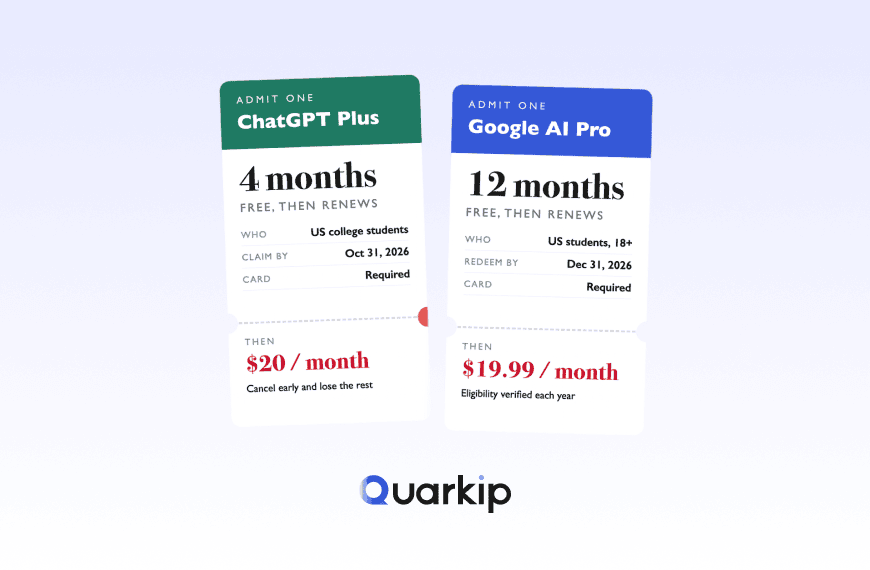
Importantly, Google AI Plus, Google AI Pro, student trials, and student bundles may have different eligibility requirements. Always check the specific promotion displayed on your account.
For an overview of the plans and eligibility requirements, read our Gemini Student Offer 2026 guide.
1. Fix “The Name Doesn’t Match”
This error usually means the name entered in SheerID doesn’t match the name displayed on your enrollment document.
For example, your form might contain:
Patricia Smith
But your student ID shows:
P. Smith
Although both refer to the same person, the verification system may not recognize the match.
How to Fix It
First, check how your university records your name.
Next, compare that information with your SheerID form.
You can either enter your name to match the official document, where appropriate, or provide a different school-issued document that displays your full first and last name.
An enrollment letter or tuition statement may work better than a student ID containing only initials.
For students with multiple surnames, preferred names, or different transliterations, use the identity information recorded by your institution. If the documents still cannot establish the match, contact SheerID rather than repeatedly changing your details.
Tip: Use genuine records. Do not edit your name on a document to make it match the form.
2. Fix “Doesn’t Meet the Date Requirements”
This is another common reason SheerID rejects student documents.
The problem is often not the document itself, but the enrollment date it shows.
Imagine that you upload a valid university ID card. Your name and school appear clearly, but the card has no expiration date or current academic-term information.
SheerID may still be unable to confirm that you’re actively enrolled.
What Documents Work Better?
Google recommends documents such as:
- A current class schedule.
- A tuition or registration receipt.
- An enrollment letter showing the current term.
- A student portal screenshot displaying current enrollment.
- A transcript that shows courses in progress.
A document should clearly establish your current student status.
For instance, a transcript printed today may still be unsuitable if it only lists classes from a previous academic year.
Likewise, an acceptance letter generally proves admission, not current enrollment.
Can You Upload Multiple Documents?
Yes, when the verification process permits it.
If your student ID confirms your identity but doesn’t show current enrollment, you may be able to submit it alongside a current class schedule.
Together, the documents can establish the necessary information.
Before uploading, make sure the documents display consistent names and the correct institution.
3. Fix “You’ve Reached the Maximum Amount of Verification Attempts”
This message appears when the document-verification attempt limit has been reached.
For Google’s student offer flow, its support guidance states that verification may stop after three unsuccessful document attempts.
At that point, submitting the same information repeatedly is unlikely to help.
What Should You Do?
Stop retrying and contact SheerID support.
Explain that you’ve reached the maximum attempts for your Google student offer verification.
Include the following information when requested:
- The email address used for verification.
- Your institution’s name.
- The exact error message.
- Any relevant verification reference.
- A brief explanation of your previous submissions.
Only share personal documents through official, secure support channels when instructed.
You can reach SheerID through its official support center.
Important: Maximum verification attempts is not the same as verification limit exceeded. The first concerns unsuccessful verification attempts; the second may involve an offer already associated with your student identity.
4. Fix “Verification Limit Exceeded”
This error has a different meaning.
According to Google’s student-offer support guidance, it can indicate that your student details have already been used to claim the offer with another Google account.
In this situation, uploading a clearer document may not solve the problem.
How to Check
Start by identifying which Google account you originally used when entering the student offer process.
If you have multiple personal Google accounts, check the original account before initiating another verification.
Google also states that student verification cannot simply be transferred between accounts.
Therefore, creating several new accounts or repeatedly resubmitting the same student identity is not a reliable solution.
If you cannot identify the original account or believe the message is incorrect, use the official support process.
For account-level issues after verification, our Gemini Student Offer Not Showing guide explains the next checks.
5. Fix “School Not Listed”
Sometimes the SheerID verification form doesn’t display your school.
Before assuming you’re ineligible, check how you entered the institution’s name.
Try the Full Official School Name
For example, searching an abbreviation may produce fewer matches than the institution’s complete legal name.
Use the full university or college name shown on its official website.
If the school has several campuses, confirm that you’re selecting the institution associated with your enrollment.
What If It Still Doesn’t Appear?
SheerID’s student FAQ explains that an institution may not qualify for a specific promotion when it cannot be found in the eligible-school list.
However, the offer’s geographic and institutional rules are determined by the promotion itself.
A university being recognized in another student-discount program does not guarantee eligibility for Google’s offer.
Check the current Google offer terms, and contact SheerID if you believe the institution should be supported.
Avoid selecting a different university simply to proceed.
6. Fix SheerID Document Upload Failed
A failed upload doesn’t necessarily mean your student status was rejected.
Sometimes the verification system cannot process the submitted file.
Common issues include:
- Blurry photos.
- Glare covering important text.
- Cropped document edges.
- Missing enrollment dates.
- Unreadable screenshots.
- Upload interruptions.
How to Prepare a Readable Document
Place a physical document on a flat surface with good lighting.
Make sure all four corners are visible and the text is readable.
Avoid reflections, excessive compression, or cropped information.
If uploading a photo from your phone doesn’t work, Google suggests trying another suitable file representation or completing the upload on a computer.
You can also try another supported browser.
Use only the official verification page and submit genuine school-issued documents.
7. Fix Gemini Student Verification Pending
After submitting documents, you may see that verification is pending.
This usually means SheerID hasn’t completed its review.
According to Google, document review normally takes a few minutes. However, during busy back-to-school periods, it can take up to a few days.
What Should You Do While Waiting?
First, check the email address used during verification.
Look for messages from SheerID in your inbox, spam, and junk folders.
Then review whether you received a request for additional documentation.
If there is no new instruction, avoid starting the process again immediately. Repeated submissions can complicate troubleshooting and may consume limited verification attempts.
When the review takes unusually long, contact SheerID using the official support form.
Include your existing case details rather than creating unrelated submissions.
Which Documents Are Best for Gemini SheerID Verification?
Choosing the right evidence before uploading can prevent several common errors.
The most important information is:
- Your full first and last name.
- Your university or college name.
- A date demonstrating current enrollment.
The following examples illustrate how document quality affects verification.
| Document | Usually Useful? | What to Check |
|---|---|---|
| Current enrollment letter | Yes | Full name, institution, current term |
| Current class schedule | Yes | Enrollment period and identifying information |
| Tuition or registration receipt | Yes | Current term and student name |
| Student ID | Depends | May lack a current enrollment date |
| Current student portal screenshot | Often | Name, school, current enrollment clearly visible |
| Old transcript | May be rejected | Past enrollment doesn’t establish current status |
| University acceptance letter | Generally insufficient | Admission is not current enrollment |
These are examples, not a guarantee that every document will be approved. SheerID makes the verification decision under the specific offer’s rules.
Before You Upload: A Practical Checklist
Check your document against these questions:
- Does it show your full name?
- Does it identify the correct institution?
- Does it demonstrate current enrollment?
- Is the text clearly readable?
- Does the information match your verification form?
If one item is missing, choose a more complete document or provide an additional supporting record when permitted.
SheerID Verified You, but Gemini Still Says Not Eligible?
If you receive a confirmation that your student status has been verified, but Google still shows regular pricing or an unavailable offer, the failure may no longer involve SheerID.
Google checks additional requirements, including:
- Eligible location and offer type.
- Personal Google account.
- Age requirements.
- Google One subscription status.
- Family-group restrictions.
- Payment profile and qualifying payment method.
Another common problem is switching Google accounts after verification.
Google states that you must complete the subscription using the Google account that originally started the SheerID verification flow.
If the two accounts differ, you may see an error even after student status has been approved.
Instead of uploading your school documents again, return to the original Google account and follow the official claim process.
For detailed help, visit our Gemini Student Offer Not Showing troubleshooting guide.
Should You Contact SheerID or Google?
Contacting the wrong support team can delay resolution.
Use the following table to identify the appropriate starting point.
| Problem | Contact |
|---|---|
| Name doesn’t match | SheerID |
| Enrollment document rejected | SheerID |
| School cannot be found | SheerID |
| Verification attempts exhausted | SheerID |
| Manual verification still pending | SheerID |
| Verified but Google offer unavailable | Google One |
| Wrong Google account during redemption | Google One |
| Payment or subscription activation failed | Google One |
| Existing Google One membership conflict | Google One |
SheerID handles student-status verification. Google manages the actual subscription and promotion.
For verification support, use the SheerID Help Center.
For eligibility and redemption rules, refer to Google’s official student-offer documentation.
FAQ
Why did my Gemini SheerID verification fail?
Common reasons include mismatched names, missing current enrollment dates, unsupported institutions, unreadable documents, exhausted verification attempts, or student details already associated with another Google account.
How long does Gemini SheerID verification take?
Google says document reviews normally take a few minutes, although they may require a few days during busy academic periods. Review the confirmation email and contact SheerID if the process remains unresolved.
Can I use a student ID for Gemini verification?
Yes, if it meets the applicable requirements. However, an ID without a current enrollment date may be insufficient. A current class schedule or enrollment letter can provide stronger evidence.
Final Thoughts
If your Gemini SheerID verification failed, the fastest solution is to identify the exact error rather than repeatedly submitting documents.
A name mismatch requires different action from an outdated enrollment document. Likewise, reaching the maximum number of verification attempts is not the same as receiving a verification-limit message associated with another Google account.
Start with the document’s name, institution, and current enrollment date. Next, confirm that your information matches the SheerID form and that you’re using the correct Google account.
If student verification itself fails, contact SheerID. If verification succeeds but the Google offer remains unavailable, contact Google One support.
The goal is not to retry more often. It’s to correct the specific verification problem and complete the process through the proper support channel.
PARTNER WITH QUARKIP Publish your content on QuarkIP Sponsored articles, guest posts and contextual link placements for proxy, web scraping, AI and developer audiences. Packages from $80 Start an inquiry →