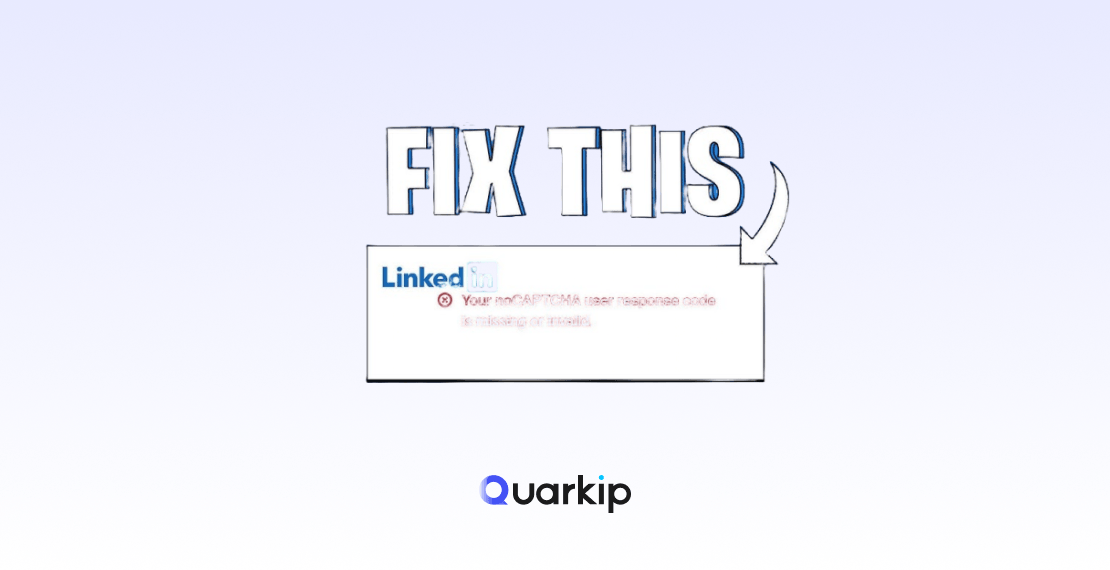
You complete LinkedIn’s security challenge, the verification appears to succeed, and then you are sent straight back to an error:
“Your noCAPTCHA user response code is missing or invalid.”
Sometimes the CAPTCHA simply starts again. You solve it, return to LinkedIn, see the same message, and get trapped in what feels like an endless verification loop.
If this is happening to you, repeatedly solving the challenge is usually not the best next step.
The error generally means that LinkedIn could not successfully validate the security challenge for your current browser or sign-in session. The CAPTCHA itself may have been completed, but something in the verification flow did not complete correctly.
Start with the simplest fixes:
- Stop repeatedly submitting the CAPTCHA.
- Make sure cookies and JavaScript are enabled.
- Clear LinkedIn site data and start a fresh browser session.
- Disable extensions that can interfere with page scripts.
- Return to your normal, familiar network.
- If you already have an account, try LinkedIn’s password recovery process.
- If LinkedIn continues to reject the challenge, use the identity-verification option offered during sign-in.
LinkedIn’s own Help Center says security prompts may appear when someone signs in from an unfamiliar location or device or when suspicious web activity is detected. It also recommends enabling cookies and avoiding VPN or proxy connections if you want to reduce repeated security challenges.
The rest of this guide explains why the noCAPTCHA error happens, which fixes are worth trying, and which common “solutions” can actually make troubleshooting harder.
What Does “Your noCAPTCHA User Response Code Is Missing or Invalid” Mean?
The wording makes the error sound like you entered the wrong CAPTCHA response.
That is not necessarily what happened.
Think of CAPTCHA verification as a multi-step exchange rather than a simple puzzle:
LinkedIn page
     ↓
Security challenge
     ↓
User completes challenge
     ↓
Challenge result returns to browser/session
     ↓
LinkedIn validates the result
     ↓
Sign-in or registration continues
The error can appear when the final validation does not complete successfully.
That distinction explains a common user experience:
The CAPTCHA says you passed, but LinkedIn immediately asks you to verify again.
LinkedIn does not publicly document this exact error string in its Help Center. Its public documentation instead discusses CAPTCHA and security verification more generally. LinkedIn says CAPTCHA may be shown during registration to distinguish human access attempts from automated ones, while sign-in security prompts may be triggered by unfamiliar devices, locations, or suspicious web activity.
Community discussions show that the exact “noCAPTCHA user response code is missing or invalid” error has affected LinkedIn users for years. A Stack Overflow thread about the error has accumulated more than 100,000 views, with users reporting verification loops even after apparently completing the challenge correctly.
So the useful question is not simply:
“Did I solve the CAPTCHA correctly?”
It is:
“What prevented the verification session from being accepted?”
Why Does LinkedIn Keep Asking Me to Complete CAPTCHA?
There is no single confirmed cause for every noCAPTCHA error.
In practice, several different situations can lead to repeated LinkedIn security verification.
1. LinkedIn Does Not Recognize the Sign-In Environment
LinkedIn explicitly states that security prompts can appear when you sign in from an unfamiliar location or device.
Examples may include signing in after:
- switching computers;
- changing browsers;
- traveling;
- changing networks;
- clearing all browser state;
- using a new mobile device.
None of these actions automatically means the account has done anything wrong.
They simply reduce continuity between the current session and the environment LinkedIn previously associated with the account.
This is why changing five things at once is usually a poor troubleshooting strategy.
If the error began after moving to a new device or network, first try returning to a familiar environment.
2. Cookies or Browser Session Data Are Not Working Correctly
CAPTCHA verification depends on a browser session being able to maintain state as you move between the challenge and LinkedIn.
LinkedIn specifically recommends enabling browser cookies to reduce repeated security challenges.
Problems can occur when:
- cookies are disabled;
- site data has become corrupted;
- aggressive privacy settings block required resources;
- browser extensions interfere with scripts;
- the session has been left open for too long.
This creates an important troubleshooting distinction.
If your browser normally works with LinkedIn but suddenly enters a CAPTCHA loop, clearing LinkedIn-specific cookies and beginning a fresh session may help.
But constantly clearing all browser data every time you sign in can also make your environment look less familiar.
Use it as a troubleshooting step, not a daily routine.
3. A Browser Extension Is Interfering With Verification
Ad blockers, privacy extensions, script blockers, security add-ons, and automation-related browser tools can change how a webpage loads or executes scripts.
That does not mean every extension causes LinkedIn CAPTCHA problems.
But if a challenge repeatedly completes and then fails validation, extensions are one of the easiest variables to isolate.
Try the same sign-in process in a clean browser profile with unnecessary extensions disabled.
If the error disappears, re-enable extensions individually until you identify the conflict.
4. Your Network Environment Changed
IP address changes are often blamed for every account verification problem, but the relationship is more nuanced.
LinkedIn’s documentation says unfamiliar locations and suspicious web activity may trigger sign-in security prompts. It also specifically advises users to avoid using a VPN or proxy server if they want to reduce how often security challenges appear.
Therefore, if the noCAPTCHA problem began after you:
- enabled a VPN;
- changed proxy servers;
- moved between networks;
- switched countries;
- connected through an unfamiliar shared network;
the best first test is usually to return to your normal connection.
Do not immediately cycle through multiple IP addresses.
That introduces even more variables into an already unsuccessful security-verification session.
5. Too Many Repeated Attempts Are Making Troubleshooting Harder
When a CAPTCHA fails, the natural response is often:
Try it again.
Then again.
And again.
But repeated login, registration, or verification attempts can make it harder to distinguish a genuine technical problem from security-related friction.
If the same challenge has failed several times despite being completed correctly, stop repeating the identical process.
Close the session, verify that your browser and network configuration are normal, and start again later from a clean state.
6. LinkedIn Detected Activity That Looks Automated
LinkedIn is unusually clear about automation.
Its Help Center states that it does not permit unauthorized third-party software or browser extensions that scrape LinkedIn, alter the site, or automate activity. It specifically mentions crawlers, bots, browser plug-ins, and automated methods of accessing or interacting with the service. Accounts using prohibited tools risk restrictions.
This matters because some people encounter the noCAPTCHA error while using:
- browser automation frameworks;
- automated registration flows;
- scraping extensions;
- outreach automation;
- CAPTCHA-solving services.
If that describes your situation, the appropriate solution is not to look for a more sophisticated method of defeating the challenge.
Disable the unauthorized automation and return to LinkedIn through a normal browser session.
LinkedIn says accounts restricted for automated activity should disable the automation software or extension involved.
LinkedIn noCAPTCHA Error: Which Problem Do You Actually Have?
Several different LinkedIn problems can look almost identical from the user’s perspective.
Use this table before troubleshooting:
| What You See | What to Check First |
|---|---|
| CAPTCHA completes, then immediately appears again | Browser/session verification loop |
| “Response code is missing or invalid” after CAPTCHA | Verification session or browser/network state |
| CAPTCHA does not load at all | Cookies, JavaScript, browser extensions |
| Problem started after changing device/location | Sign-in security verification |
| Problem started after enabling VPN/proxy | Return to normal network |
| Existing account can no longer pass verification | Password recovery or identity verification |
| New account cannot finish registration | Registration security check |
| Account says it is restricted | Follow LinkedIn’s account recovery process |
| Problem appears while running automation | Disable unauthorized automation |
The correct fix depends heavily on which row describes your situation.
How to Fix the LinkedIn noCAPTCHA Error
Fix 1: Stop the Verification Loop Before Doing Anything Else
If you have already solved the CAPTCHA multiple times and received the same error, do not keep submitting it indefinitely.
Instead:
Close the LinkedIn page, wait briefly, and begin a new sign-in session.
This helps eliminate stale verification state and prevents you from testing the same failing session repeatedly.
Fix 2: Enable Cookies and JavaScript
LinkedIn officially recommends enabling cookies to reduce repeated security challenges.
Check that your browser is not blocking cookies or essential scripts for LinkedIn.
Then reload the page.
If you use strict privacy protection, temporarily return the settings to their normal/default level during troubleshooting.
Fix 3: Clear LinkedIn Site Data
If the verification session appears corrupted, remove LinkedIn-specific cookies and site data rather than wiping your entire browser history.
Then:
- Close all LinkedIn tabs.
- Reopen the browser.
- Visit LinkedIn directly.
- Sign in again.
- Complete the security challenge once.
A widely viewed Stack Overflow discussion of this exact error includes a community-reported fix involving clearing LinkedIn cookies and starting a fresh session. That is anecdotal rather than an official LinkedIn solution, so it should be treated as a troubleshooting option rather than a guaranteed fix.
Fix 4: Test a Clean Browser Session
If the problem remains, try a mainstream browser with a clean configuration.
Chrome, Edge, Firefox, or Safari are sensible choices.
Temporarily disable nonessential extensions—especially extensions that:
- block scripts;
- modify webpages;
- automate browser actions;
- alter privacy/network behavior.
If LinkedIn works normally afterward, one of those extensions may have been interfering with the verification process.
Fix 5: Return to Your Normal Network
This is particularly important if you recently changed networks.
LinkedIn explicitly advises users to avoid VPNs and proxy servers when trying to reduce security challenges.
If you normally use LinkedIn from your home or office connection, try that environment again.
Avoid repeatedly switching between:
Home Wi-Fi
→ VPN
→ Proxy
→ Mobile hotspot
→ Another VPN
→ Different country
From a troubleshooting perspective, that sequence is counterproductive because you no longer have a stable baseline.
Use one legitimate, familiar network and see whether the issue persists.
Fix 6: Try Password Recovery if This Is an Existing Account
Password reset is one of the most commonly reported community workarounds for this specific error.
Users in the long-running Stack Overflow discussion and LinkedIn community posts have reported being able to regain access by going through the Forgot Password process instead of continuing the failing CAPTCHA loop.
The logic is straightforward:
Instead of continuing an unsuccessful sign-in flow, password recovery starts a different account-verification path.
This option is most relevant when:
- the LinkedIn account already exists;
- you still control the registered email or phone number;
- normal sign-in is trapped in a verification loop.
It is not a solution for someone who is trying to create a brand-new account and has not completed registration.
Also note that password reset is a community-reported workaround, not an official guarantee that LinkedIn publishes for this exact noCAPTCHA error.
Fix 7: Use LinkedIn Identity Verification When Offered
This is one of the strongest official recovery paths.
LinkedIn’s sign-in security documentation states that if you initiated the sign-in but cannot successfully pass the security challenge, you may be offered the option to verify your identity instead.
If LinkedIn presents that option, use it rather than repeatedly attempting the same CAPTCHA.
LinkedIn may use different identity-verification partners and methods depending on the user’s country and account situation. The exact instructions displayed in your account should therefore take priority over third-party tutorials.
Fix 8: Check Whether the Account Has Actually Been Restricted
A CAPTCHA loop and an account restriction are not necessarily the same problem.
LinkedIn states that accounts may be restricted for identity issues, suspected compromise, automated activity, or serious violations. When applicable, members can follow on-screen instructions to verify their identity and regain access.
If the page explicitly says your account is restricted, stop treating the issue as a browser-only CAPTCHA bug.
Follow LinkedIn’s account-recovery instructions instead.
Does Changing Your IP Fix the LinkedIn noCAPTCHA Error?
Sometimes changing networks appears to help individual users.
That does not mean changing your IP address is a universal fix.
Community reports are inconsistent. In the large Stack Overflow discussion, one user reported success after clearing cookies and switching networks, while the original poster said that trying different proxies—and disabling proxies—did not solve the issue.
LinkedIn’s official recommendation is clearer:
To reduce security challenges, avoid using a VPN or proxy server.
Therefore, if you’re troubleshooting a legitimate LinkedIn account, the safest approach is:
Known device
+
Normal browser
+
Cookies enabled
+
Familiar network
+
No unnecessary VPN/proxy
rather than repeatedly changing IP addresses.
Does IP Reputation Matter at All?
Yes—but it should not be confused with an account-unlock mechanism.
Online platforms commonly evaluate network context as part of fraud and security systems. LinkedIn publicly confirms that unfamiliar locations and suspicious web activity can result in additional security prompts.
IP reputation can also vary depending on an address’s abuse history, network ownership, and previous usage. If you’re unfamiliar with the concept, see our guide to what is a clean IP.
A shared or datacenter-based network may also present different characteristics from a normal residential connection. Our residential vs datacenter proxies comparison explains how the two network types differ in IP origin, stability, and typical use cases.
However:
IP reputation is only one part of a much larger security context.
Residential, ISP, and datacenter IPs also behave differently at the network level. See our overview of different proxy types if you want to understand how IP source and connection characteristics differ.
Other signals may include:
- device continuity;
- browser session state;
- account history;
- authentication history;
- activity patterns;
- automated software;
- identity-verification status.
For that reason, treating a “clean IP” as a guaranteed LinkedIn CAPTCHA fix is misleading.
Proxy services can be valuable for legitimate applications such as regional web testing, SEO monitoring, localization research, and public-web data workflows, but they should not be marketed as a way to circumvent LinkedIn’s security controls.
Why Does LinkedIn CAPTCHA Keep Looping Even After I Pass It?
This is the defining symptom of the noCAPTCHA problem.
The visible challenge and the final LinkedIn verification are not necessarily the same event.
A simplified explanation is:
You solve CAPTCHA successfully
          ↓
CAPTCHA provider accepts challenge
          ↓
Browser returns verification result
          ↓
LinkedIn checks current session
          ↓
Verification is not accepted
          ↓
New CAPTCHA begins
The loop can therefore occur even when the user is choosing the correct CAPTCHA answers.
That is why endlessly solving the visual challenge may not help.
The useful troubleshooting targets are the surrounding session:
browser state → cookies → extensions → network → account verification.
What If LinkedIn CAPTCHA Does Not Load at All?
This is slightly different from the “missing or invalid response code” error.
If the challenge itself is blank, frozen, or unavailable, first check:
- JavaScript;
- cookies;
- content blockers;
- privacy extensions;
- browser compatibility;
- network filtering.
LinkedIn’s security-verification documentation acknowledges that CAPTCHA may be part of registration and sign-in security and provides alternative CAPTCHA options in certain interfaces.
If the challenge loads correctly but fails after completion, focus more heavily on the verification-session troubleshooting described earlier.
What NOT to Do When LinkedIn Verification Keeps Failing
Don’t keep refreshing and solving the same CAPTCHA
If the verification state is already failing, repetition rarely helps diagnose the problem.
Don’t constantly switch devices and countries
LinkedIn specifically says unfamiliar locations and devices may trigger security prompts.
Don’t cycle through random VPNs and proxies
LinkedIn recommends avoiding VPN/proxy connections to reduce security challenges.
Don’t install CAPTCHA-solving or automation extensions
LinkedIn prohibits unauthorized automation, scraping tools, bots, and extensions that automate activity or circumvent access controls.
Don’t create replacement accounts to avoid an account restriction
If your existing account has been restricted, use LinkedIn’s recovery and identity-verification processes instead.
The objective should be restoring legitimate access—not finding another path around LinkedIn’s security system.
LinkedIn noCAPTCHA Troubleshooting Decision Tre
Use this quick flow if you’re unsure what to try next:
Does the CAPTCHA load?
        │
        ├── No
        │   ↓
        │   Check JavaScript, cookies,
        │   extensions and browser
        │
        └── Yes
            ↓
Does CAPTCHA pass but immediately repeat?
            │
            ├── Yes
            │   ↓
            │   Stop repeated attempts
            │   Clear LinkedIn site data
            │   Use a clean browser session
            │   Return to normal network
            │
            └── No
                ↓
Is this an existing LinkedIn account?
                │
                ├── Yes
                │   ↓
                │   Try password recovery
                │   or identity verification
                │
                └── No
                    ↓
                    Restart registration
                    using a normal browser
                    and legitimate network
If LinkedIn explicitly tells you the account is restricted, leave this troubleshooting flow and follow the official account-recovery process.
FAQ
What does “Your noCAPTCHA user response code is missing or invalid” mean?
It means the security challenge result was not successfully accepted for the current LinkedIn verification session.
The message does not necessarily mean you answered the CAPTCHA incorrectly. Browser state, session problems, security verification, or network changes may also be involved.
Why does LinkedIn CAPTCHA keep repeating after I complete it?、
The CAPTCHA challenge may succeed while the overall LinkedIn verification session still fails.
Try stopping repeated attempts, clearing LinkedIn-specific site data, checking cookies and extensions, and signing in again using your normal network.
How do I fix the LinkedIn noCAPTCHA error?
For legitimate account access, the most useful sequence is:
enable cookies → use a clean browser session → disable interfering extensions → return to your familiar network → try password recovery if you already have an account → use identity verification if LinkedIn offers it.
LinkedIn officially recommends enabling cookies and avoiding VPN/proxy connections to reduce security challenges.
Does resetting my LinkedIn password fix the noCAPTCHA error?
It can in some cases.
Password recovery is a frequently reported community workaround for existing LinkedIn accounts stuck in this CAPTCHA loop. However, LinkedIn does not publish password reset as a guaranteed fix for this exact error, and it does not help users who have not yet finished registering a new account.
Should I use a VPN to fix LinkedIn CAPTCHA problems?
Not as your first troubleshooting step.
LinkedIn explicitly recommends avoiding VPN and proxy servers if you want to reduce security challenges.
If the problem began after enabling a VPN, return to your normal connection first.
Can a proxy fix “Your noCAPTCHA user response code is missing or invalid”?
There is no reliable evidence that a proxy is a universal fix.
In fact, LinkedIn advises avoiding proxy servers when troubleshooting repeated security challenges. A proxy also cannot correct corrupted browser state, identity-verification problems, account restrictions, or prohibited automated behavior.
Why is LinkedIn asking me to verify my identity?
LinkedIn may use additional security verification when it detects an unfamiliar device or location, suspicious activity, possible account compromise, or another account-security issue. If you cannot successfully pass the normal challenge, LinkedIn may provide identity verification as an alternative recovery path.
Can browser automation trigger LinkedIn verification?
It can lead to enforcement issues.
LinkedIn explicitly prohibits unauthorized third-party tools, bots, crawlers, browser extensions, and software that scrape data or automate activity on LinkedIn. Accounts using prohibited tools may be restricted.
Final Thoughts
The LinkedIn error “Your noCAPTCHA user response code is missing or invalid” is frustrating because it can appear even after the visible security challenge seems to have been completed correctly.
The key is to stop treating it as nothing more than a CAPTCHA puzzle.
The failure may involve the broader verification session:
CAPTCHA
+
Browser state
+
Cookies
+
Device
+
Network
+
Account security
Start with the least disruptive approach.
Use a normal browser, enable cookies, remove potential extension conflicts, return to your familiar network, and avoid repeatedly restarting verification from changing devices or IP addresses.
For an existing LinkedIn account, password recovery has helped some users escape the loop. If LinkedIn offers identity verification, that is the more authoritative recovery path.
And if the account is genuinely restricted or automation is involved, browser tricks and IP changes are not the appropriate solution. Follow LinkedIn’s official account-recovery process and remove any prohibited automation.
The goal is not to “beat” the CAPTCHA.
It is to restore a normal, trustworthy verification session that LinkedIn can successfully validate.
PARTNER WITH QUARKIP Publish your content on QuarkIP Sponsored articles, guest posts and contextual link placements for proxy, web scraping, AI and developer audiences. Packages from $80 Start an inquiry →