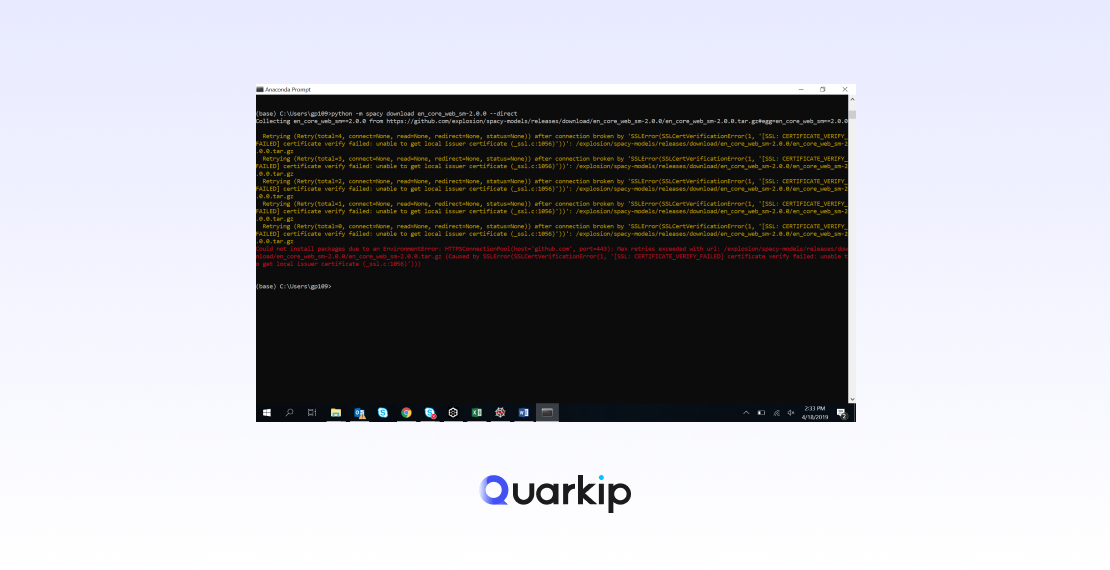
When installing packages with pip, you might encounter an error like this:
ERROR: Could not fetch URL <URL>: There was a problem confirming the ssl certificate: [SSL: CERTIFICATE_VERIFY_FAILED] certificate verify failed (_ssl.c:748)
This issue typically arises when pip fails to verify the SSL certificate of the Python Package Index (PyPI) or another server during installation. The error may occur due to several reasons, including outdated certificates, incorrect system time, or network interference.
This article will explain the potential causes behind the SSL certificate verification failed error and guide you through several effective solutions.
Common Causes of SSL Certificate Verification Failed Error
1. Outdated SSL Certificates
Your local machine might have outdated SSL certificates, which can prevent pip from verifying the server’s SSL certificate properly. This problem is especially common in systems that have not been updated for a while.
2. Invalid or Misconfigured System Time
SSL certificates rely on accurate system time to validate their expiration and issuance dates. If your system clock is incorrect, SSL verification may fail, resulting in an error.
3. Proxy or Firewall Interference
If you’re using a proxy server or are behind a corporate firewall, it may interfere with the SSL handshake process. Proxies often use their own certificates, which may not be trusted by pip, causing verification to fail.
4. Python Version Compatibility
Older versions of Python and pip might not support modern SSL/TLS protocols, leading to SSL verification failures when attempting to install packages.
How to Fix the Pip SSL Certificate Verification Failed Error
1. Update Your SSL Certificates
One of the first steps to resolve this error is to update your SSL certificates. Updated certificates ensure that your system can correctly verify the SSL certificates of external servers, including PyPI.
For macOS:
On macOS, SSL certificates are managed through the Keychain Access app. To update your certificates:
- Open Keychain Access.
- Find and update any expired or missing root certificates for Python or pip.
- Alternatively, you can download the latest root certificates from trusted sources and manually install them.
For Linux (Ubuntu/Debian):
To update the CA certificates on Linux, use the following commands:
sudo apt update
sudo apt install --reinstall ca-certificates
This ensures that your system has the most recent CA certificates, which are needed for SSL verification during pip installations.
For Windows:
Windows typically manages certificates automatically. To update certificates, ensure that Windows Update is enabled and running. This process typically resolves outdated certificate issues.
2. Correct Your System Time
Incorrect system time can cause SSL verification to fail. SSL certificates rely on the correct time to validate their expiration. If your clock is incorrect, the certificate may appear as expired or invalid.
For Windows:
- Right-click the clock in the bottom-right corner.
- Choose Adjust date/time and enable Set time automatically.
- Ensure the correct time zone is selected.
For macOS:
- Open System Preferences > Date & Time.
- Enable Set date and time automatically.
For Linux:
You can synchronize your system clock using:
sudo timedatectl set-ntp true
3. Use a Different PyPI Mirror
Sometimes, SSL issues may occur with the default PyPI server. In such cases, switching to a different mirror may solve the problem. You can specify a different mirror using the -i or --index-url flag.
Example Command:
pip install <package-name> -i https://pypi.tuna.tsinghua.edu.cn/simple
This command uses the Tsinghua University mirror, which may offer a more stable connection for users in certain regions.
4. Disable SSL Verification (Temporary Solution)
As a temporary workaround, you can disable SSL verification for pip, but this is not recommended for production environments. By bypassing SSL checks, you may expose your system to security vulnerabilities.
Command:
pip install <package-name> --trusted-host pypi.org --trusted-host pypi.python.org --trusted-host=files.pythonhosted.org
This command disables SSL verification for the specified hosts, allowing pip to continue the installation process. Again, this should only be used as a last resort.
5. Upgrade Pip and Python
If you’re using outdated versions of pip or Python, upgrading them to the latest versions may resolve SSL verification issues. Newer versions support modern SSL protocols, which can eliminate errors.
Upgrade Pip:
python -m pip install --upgrade pip
Upgrade Python:
To get the latest version of Python, visit the official Python website and download the latest release. This will include a newer version of pip with better SSL support.
6. Configure Proxy Settings
If you’re behind a proxy that uses custom SSL certificates, you’ll need to configure pip to trust those certificates. You can do this by using the --proxy flag with the proxy’s URL.
Example Command for Proxy:
pip install <package-name> --proxy http://<proxy-server>:<port>
If your proxy requires authentication, include the username and password in the proxy URL:
pip install <package-name> --proxy http://username:password@<proxy-server>:<port>
Preventing Future SSL Verification Issues
1. Regularly Update Your SSL Certificates
Keep your SSL certificates up to date to avoid potential verification failures. Running system updates regularly will ensure that your certificates remain valid.
2. Use Virtual Environments
Using virtual environments helps isolate dependencies and prevents potential conflicts, including SSL verification issues. This way, your main Python environment remains clean and unaffected by package-specific issues.
Create a Virtual Environment:
python -m venv venv
source venv/bin/activate  # On Windows use venv\Scripts\activate
Conclusion
The SSL certificate verification failed error can be frustrating, but it is often solvable by updating your SSL certificates, correcting the system time, or using an alternative PyPI mirror. Follow the solutions provided in this guide to resolve the issue and get back to installing packages without interruptions.
For ongoing security, ensure that your Python and pip versions are up-to-date, and consider using virtual environments to maintain isolated, well-managed Python environments.
PARTNER WITH QUARKIP Publish your content on QuarkIP Sponsored articles, guest posts and contextual link placements for proxy, web scraping, AI and developer audiences. Packages from $80 Start an inquiry →