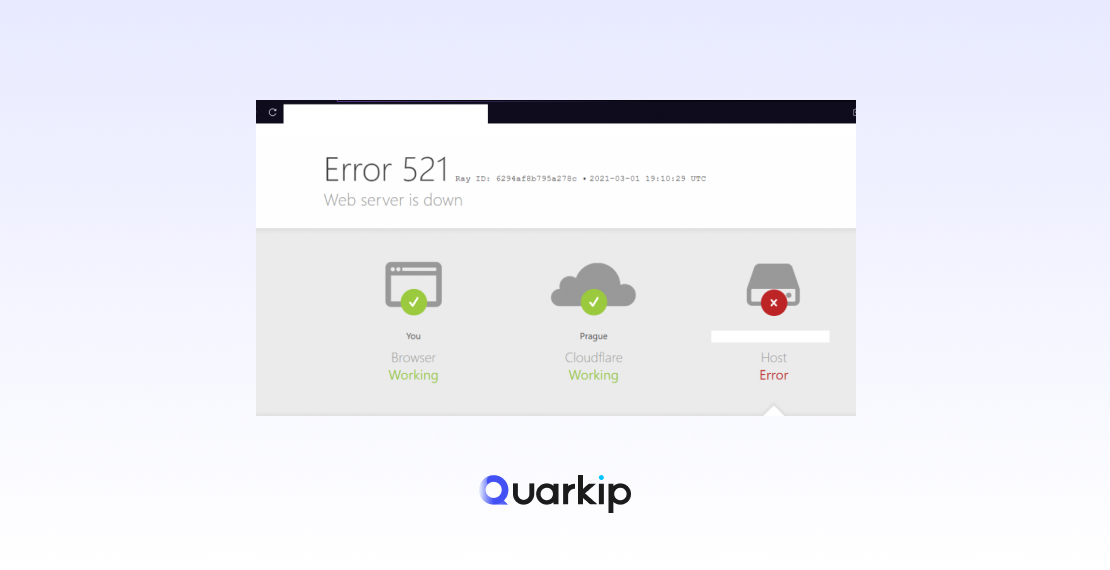
Cloudflare Error 521: Web Server Down is a common error that occurs when Cloudflare tries to establish a connection to your origin server but cannot reach it. This error means that Cloudflare was able to resolve the DNS for your domain, but when it tried to connect to your server, the server didn’t respond or was down.
The error message typically shows as:
“Error 521: Web Server Is Down”
This error can occur for a variety of reasons, from server misconfigurations to network issues. In this article, we will explain the common causes of Cloudflare Error 521 and provide actionable steps to resolve it.
What Causes Cloudflare Error 521?
Cloudflare Error 521 happens when Cloudflare cannot connect to your web server. The most common causes of this error include:
1. Web Server Is Offline
The most straightforward reason for Error 521 is that your origin server is down or unreachable. This could happen if your server is experiencing technical issues, is powered off, or has a service interruption.
2. Firewall Blocking Cloudflare’s IPs
If your server’s firewall is blocking Cloudflare’s IP addresses, Cloudflare won’t be able to connect to your server. This is one of the most common causes of the 521 error, and it often happens when a server administrator has accidentally blocked Cloudflare’s IPs.
3. Incorrect DNS Settings
If your DNS settings are incorrect or misconfigured, Cloudflare may fail to connect to your origin server. This can happen if there’s an issue with your A record or if your DNS server is not responding correctly.
4. Web Server Misconfiguration
A misconfigured web server (e.g., Apache, Nginx, etc.) can cause Cloudflare to fail to connect. Common issues include misconfigured ports, incorrect reverse proxy settings, or conflicts in server software.
5. Server Overload or Resource Exhaustion
Your server may be overwhelmed with traffic, running out of resources (such as CPU or RAM), or hitting resource limits, preventing it from responding to Cloudflare requests.
6. Cloudflare Settings Conflict
Cloudflare’s settings or configurations could conflict with your server, causing communication problems. Issues like SSL/TLS misconfigurations or proxy settings might trigger this error.
How to Fix Cloudflare Error 521
Now that we’ve reviewed the common causes, here are the steps you can take to resolve Cloudflare Error 521:
1. Check if Your Web Server Is Online
The first step is to confirm that your origin web server is running and online:
- Ping the Server: Try pinging your server’s IP address to see if it’s responding.
- Access the Server Directly: Try accessing the server directly without Cloudflare (by using the server’s IP address or temporarily disabling Cloudflare’s proxy) to verify that the server is online.
- Check Server Status: If you’re using a hosting provider, check their status page for any server outages or maintenance. You can also check with your hosting provider’s support team.
2. Verify Firewall Settings and Whitelist Cloudflare IPs
A common cause of Cloudflare Error 521 is a firewall blocking Cloudflare’s IPs. To resolve this:
- Whitelist Cloudflare IPs: Ensure that Cloudflare’s IP addresses are allowed to access your server. You can find Cloudflare’s IP ranges in their official documentation.
- Check for Firewalls or Security Tools: Ensure that tools like fail2ban, CSF (ConfigServer Security & Firewall), or other security software on your server aren’t blocking Cloudflare’s IPs.
3. Review DNS Settings
Check your DNS settings to ensure that Cloudflare is pointing to the correct A record or CNAME record for your domain:
- Verify A Record: In your Cloudflare dashboard, check the A record for your domain and ensure it points to the correct public IP address of your web server.
- Check DNS Resolution: Use tools like DNSstuff or MXToolbox to confirm that your DNS records resolve correctly.
- Ensure DNS Propagation: If you’ve recently updated DNS records, ensure they have propagated globally (this may take 24-48 hours).
4. Confirm Server Configuration
Ensure that your web server (e.g., Apache, Nginx) is correctly configured:
- Check Server Logs: Review the server logs for any errors that might prevent it from responding to Cloudflare. For example, look for 503 errors, timeouts, or out of memory errors.
- Test Server Ports: Verify that the server is listening on the correct ports (usually HTTP port 80 and HTTPS port 443) and can accept incoming connections.
- Check Reverse Proxy Settings: If you’re using a reverse proxy (e.g., Nginx with Apache behind it), ensure the proxy is configured to pass requests from Cloudflare to your server correctly.
5. Check for Server Overload
A server under heavy load may fail to respond to requests. To fix this:
- Monitor Server Load: Use tools like htop (Linux) or Task Manager (Windows) to monitor CPU, memory, and disk usage.
- Optimize Server Performance: Reduce server load by optimizing your code, using caching systems, or upgrading server resources (e.g., adding more RAM or CPU power).
- Upgrade Hosting Plan: If you’re using shared hosting, consider upgrading to a VPS or dedicated server if your site receives heavy traffic.
6. Review Cloudflare Settings
Check your Cloudflare settings to ensure that no configurations are interfering with server communication:
- Verify SSL/TLS Settings: If you’re using SSL, make sure your SSL/TLS settings in Cloudflare match those of your server (e.g., Full SSL or Strict SSL).
- Check Proxy Settings: Ensure that the Cloudflare proxy is enabled for your domain’s DNS records (indicated by the orange cloud next to the A record in Cloudflare).
- Check for Error Logs: Review Cloudflare’s Analytics and Error Logs for additional details about the error.
When to Contact Cloudflare Support
If you’ve tried all the above steps and the error persists, it may be time to contact Cloudflare support:
- Provide Details: Provide them with information such as your server’s IP address, DNS settings, and any recent changes made to your server or Cloudflare configuration.
- Ask for Assistance: Cloudflare’s support team can help troubleshoot and confirm whether the issue lies with Cloudflare’s services or your server configuration.
Conclusion
Cloudflare Error 521 indicates that Cloudflare was unable to connect to your origin web server. The error can be caused by a variety of factors, including server downtime, firewall issues, DNS misconfigurations, or server overload. By following the troubleshooting steps outlined in this article, you can resolve the error and restore access to your website.
Regular server monitoring, correct DNS settings, and proper firewall configuration are essential to prevent future occurrences of Cloudflare Error 521.
PARTNER WITH QUARKIP Publish your content on QuarkIP Sponsored articles, guest posts and contextual link placements for proxy, web scraping, AI and developer audiences. Packages from $80 Start an inquiry →