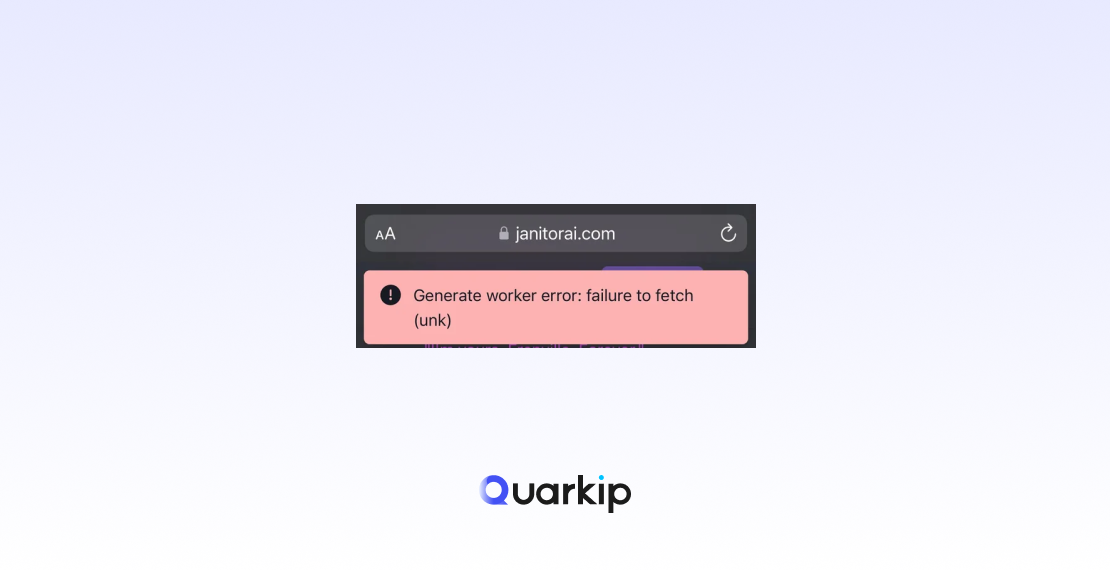
Many users of Janitor AI encounter the frustrating “Failed to Fetch” error when trying to start or continue a conversation.
The error usually appears suddenly and prevents the chatbot from responding. For many users, it can be confusing because the message itself provides little explanation.
The good news is that this issue is often easy to fix. In most cases, it is related to network requests, API configuration, or browser problems rather than a serious platform failure.
In this guide, we’ll explain:
- What the “Failed to Fetch” error means
- The most common causes
- Step-by-step solutions that actually work
If you’re unfamiliar with the platform, read our complete introduction:
What Is Janitor AI?
What Does “Failed to Fetch” Mean in Janitor AI?
The “Failed to Fetch” error means that the browser was unable to successfully retrieve data from the server.
In simple terms, the platform attempted to send a request but the response never arrived or was blocked.
This can happen for several reasons, such as:
- Network interruptions
- API connection failures
- Browser security restrictions
- Server downtime
Because Janitor AI relies on external AI models and APIs, any break in that connection may trigger this message.
Common Causes of the Error
Understanding the root cause makes troubleshooting much easier.
1 Network Connectivity Problems
Unstable internet connections are one of the most common triggers.
If your connection drops briefly while the request is sent, the platform may fail to retrieve the response.
This can happen when:
- Wi-Fi signals are weak
- ISP connections fluctuate
- Requests are blocked by regional network restrictions
2 Incorrect API Configuration
Many users connect their accounts to external AI services such as OpenAI.
If the API key is missing, expired, or incorrectly configured, the system cannot process requests.
Typical API issues include:
- Invalid API key
- Exceeded API limits
- Incorrect model configuration
3 Browser Cache or Extension Conflicts
Browsers store temporary files to improve loading speed. However, corrupted cache data can sometimes interfere with requests.
Similarly, certain extensions—especially privacy blockers or script filters—may block the request entirely.
4 Platform Server Issues
Occasionally the issue is not on the user side.
If the servers used by Janitor AI or its connected AI providers experience downtime, requests may fail temporarily.
How to Fix the “Failed to Fetch” Error
Below are the most effective solutions reported by users.
1 Refresh the Page
The simplest fix often works.
Reload the page and try sending the message again. Temporary request failures may resolve automatically after refreshing.
2 Check Your Internet Connection
Make sure your internet connection is stable.
You can try:
- Restarting your router
- Switching networks
- Testing another website to confirm connectivity
If your network environment blocks certain requests, switching networks may immediately resolve the issue.
3 Verify Your API Key
If you are using an external AI provider such as OpenAI, confirm that:
- Your API key is correct
- Your account still has usage quota
- The model configuration is valid
Incorrect credentials are one of the most common configuration mistakes.
4 Clear Browser Cache
Clearing cached data can remove corrupted files that interfere with requests.
Steps typically include:
- Open browser settings
- Navigate to privacy or history
- Clear cached images and files
- Reload the website
After clearing the cache, sign in again and test the chatbot.
5 Disable Problematic Browser Extensions
Some extensions block scripts or external requests.
Temporarily disable extensions such as:
- ad blockers
- script blockers
- privacy shields
Then refresh the page and try again.
6 Wait for Server Recovery
If the issue is caused by server downtime, the only solution may be waiting.
You can check community forums or social platforms to see if other users are reporting similar issues.
If many users encounter the same error at the same time, it is likely a temporary outage.
Preventing Future Errors
Although occasional errors are unavoidable, several steps can reduce the chances of encountering the problem again.
Best practices include:
- Keeping browser extensions minimal
- Maintaining stable internet connectivity
- Monitoring API usage limits
- Refreshing sessions periodically
These simple habits help maintain a smoother experience.
Final Thoughts
The “Janitor AI Failed to Fetch” error may seem alarming at first, but it usually has straightforward solutions.
Most issues stem from network instability, API configuration problems, or browser conflicts rather than permanent platform failures.
By checking your connection, verifying API settings, and clearing browser data, you can typically restore normal functionality within minutes.
If problems persist, monitoring server status or waiting for platform updates is often the next step.
If Janitor AI stops working entirely, you may also find this guide helpful:
Janitor AI Not Working? 8 Quick Fixes That Actually Work