
1. Download and install BitBrowser. If you do not have an account, create one and sign in.
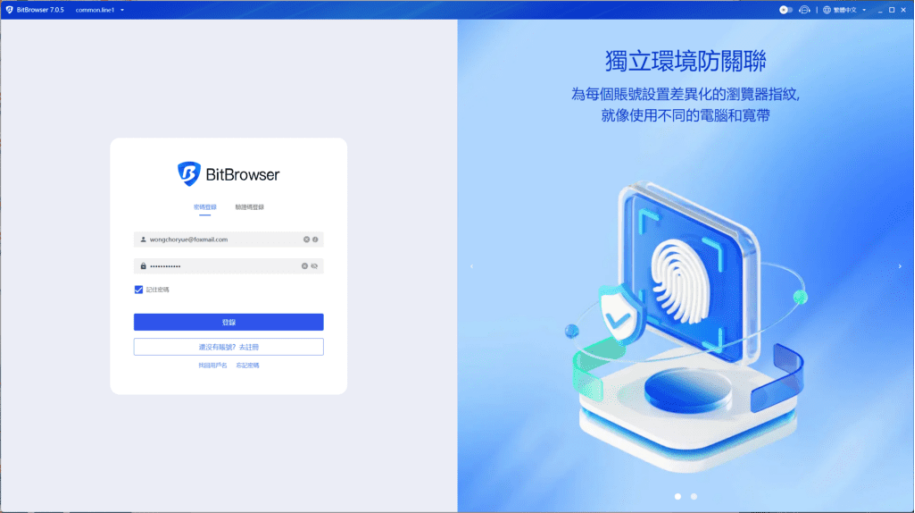
BitBrowser sign-in page
2. After signing in, select “Proxy IP” from the left-hand menu.
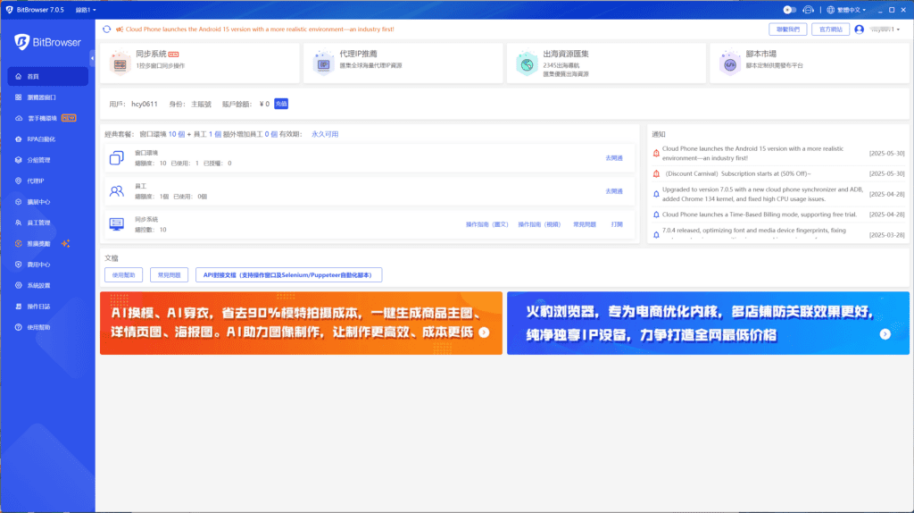
The “Proxy IP” entry in the BitBrowser dashboard
3. On the proxy management page, click “Add Proxy.” You will now need to return to QuarkIP to generate the residential proxy connection details.
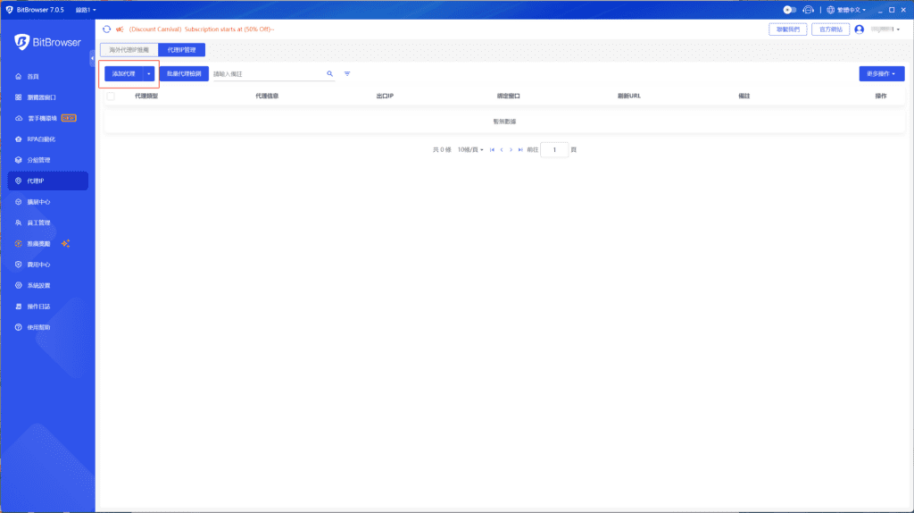
The “Add Proxy” button on the proxy management page
4. After purchasing residential proxy traffic or claiming the free trial, open the “Residential” proxy page in QuarkIP and configure the following settings.
- Country/Region: Select the proxy exit country or region. Choose “Global Mix” for randomly assigned locations
- State: Optional. Leave this blank to receive a random IP within the selected country or region
- City: Optional. Leave this blank if city-level targeting is not required
- Route: QuarkIP normally recommends the best route based on your current network location
- Rotation: Select Random or Sticky. Random mode can change the IP with each request, while Sticky mode keeps the same IP for a limited session period
- Protocol: Select HTTP or SOCKS5
- Quantity: Generate multiple proxy connections when configuring multiple browser profiles. Select 1 when configuring only one profile
Click “Extract” after completing the settings.
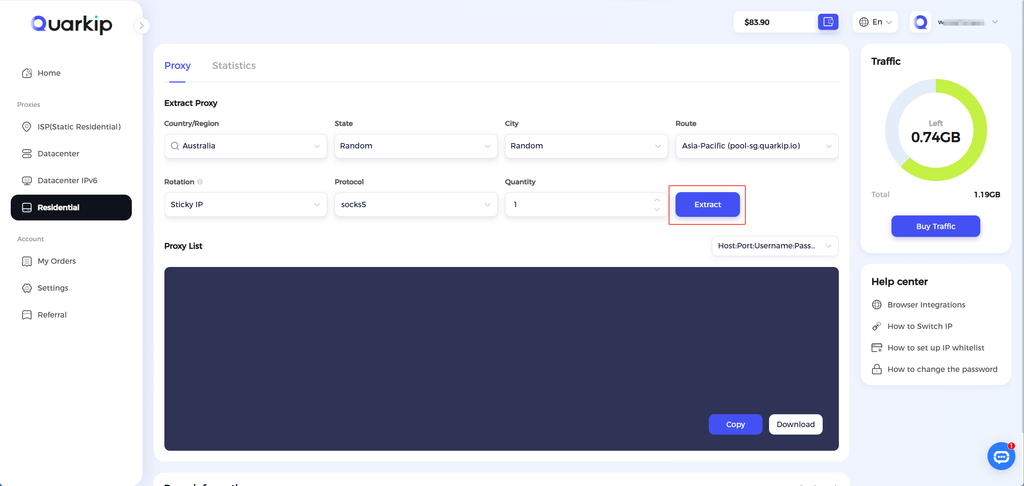
Configuring and extracting a residential proxy in QuarkIP
5. Copy the proxy connection details generated by QuarkIP and enter them in the corresponding BitBrowser fields.
- Proxy Type: Select the same HTTP or SOCKS5 protocol used when extracting the proxy in QuarkIP
- Proxy Host: Enter the host
- Proxy Port: Enter the port
- Proxy Username: Enter the complete username
- Proxy Password: Enter the password
Note: Proxy connection details are commonly separated by colons (:). The username may contain country, location, and session parameters. Copy the complete username without removing any suffixes.
Check the proxy after confirming that each field is correct. Save the proxy when the test succeeds.
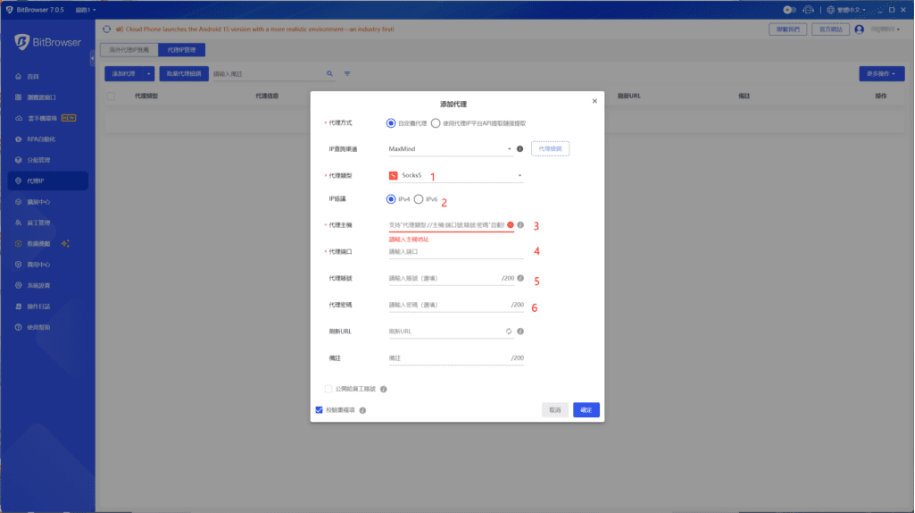
Adding the QuarkIP residential proxy in BitBrowser
6. Return to “Browser Profiles” and click “Add” to create a new browser profile.
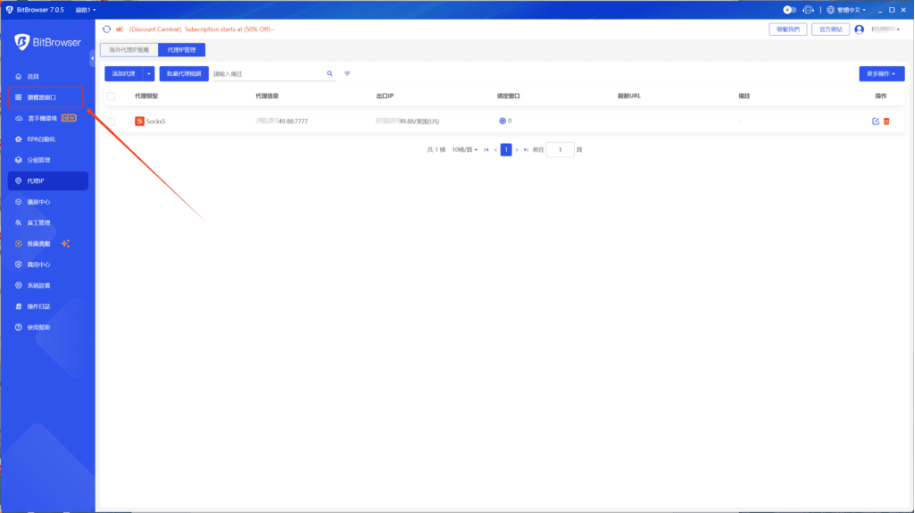
Returning to the browser profile list
7. Complete the other profile settings. Under proxy management, select the QuarkIP residential proxy you just added, and then save the profile.
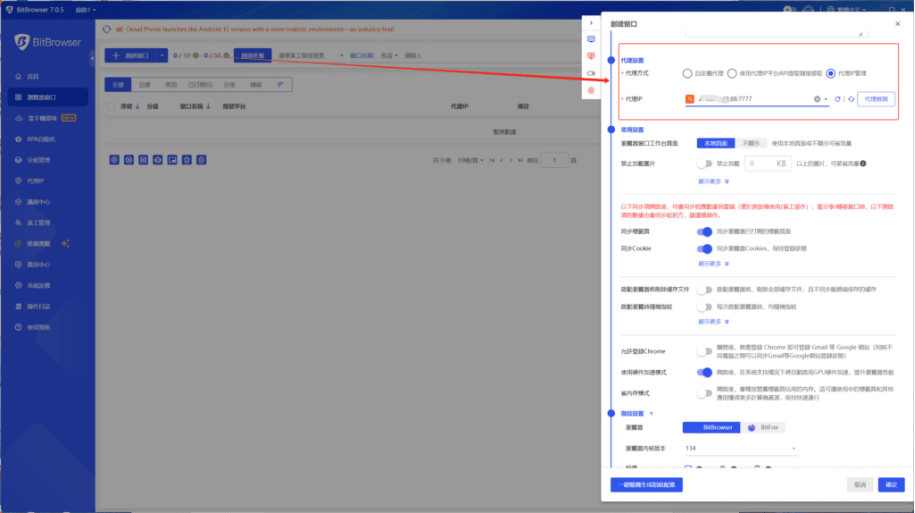
Creating a browser profile and selecting the proxy
8. Click “Open” next to the browser profile. In the new browser window, visit an IP-checking website and confirm that the displayed location matches your settings.
- With Sticky mode, the IP remains the same for the duration of the active session whenever possible
- With Random mode, the IP may change with each new request
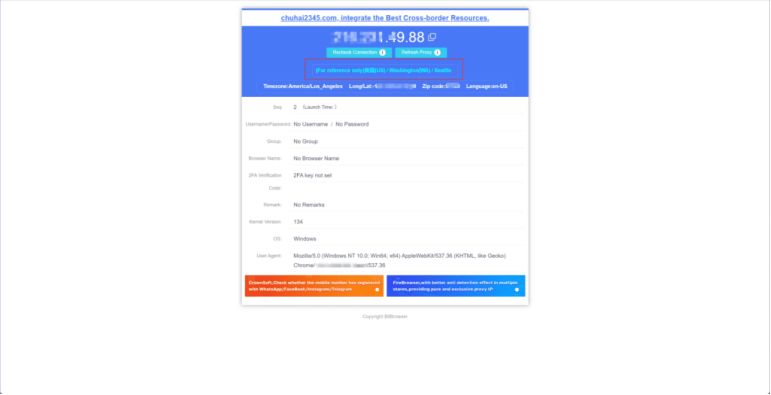
Opening the browser profile and checking the proxy IP
The QuarkIP residential proxy is now ready to use in BitBrowser.


