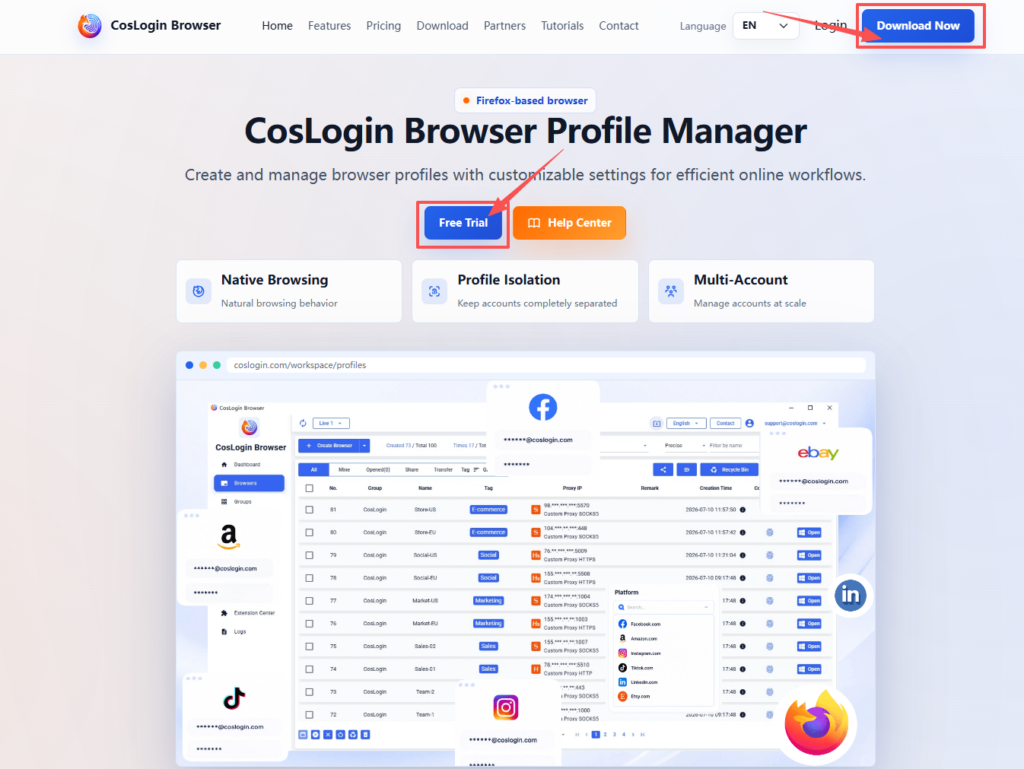
Step 1: Install and Log In to CosLogin
- Download and install CosLogin Antidetect Browser, then sign up and log in to your account (Sign up to get started for free)
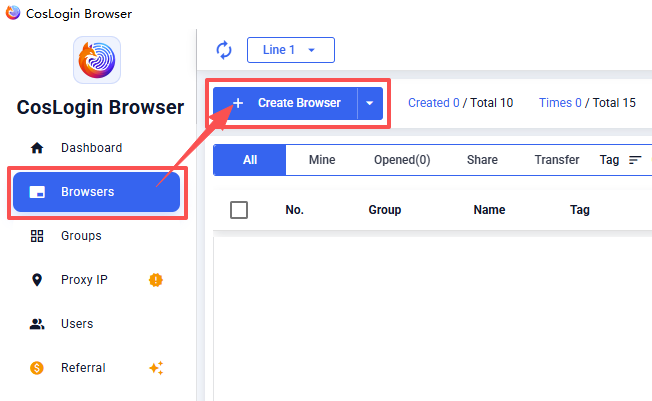
- After logging in, go to [Browsers] and click [Create Browser]
Step 2: Get a QuarkIP Proxy
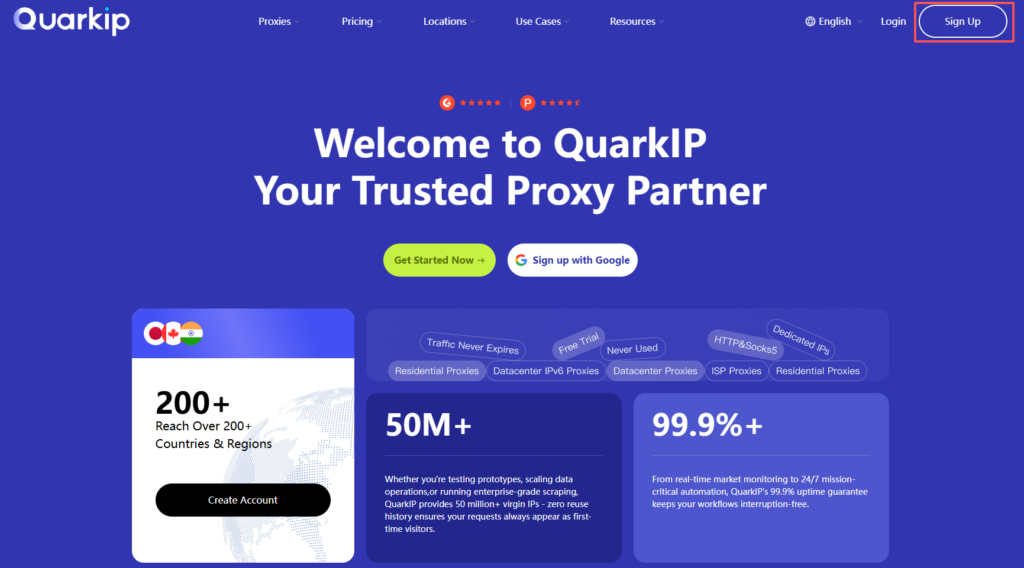
- Sign up and log in to your QuarkIP account (200 MB free traffic + 13% OFF)
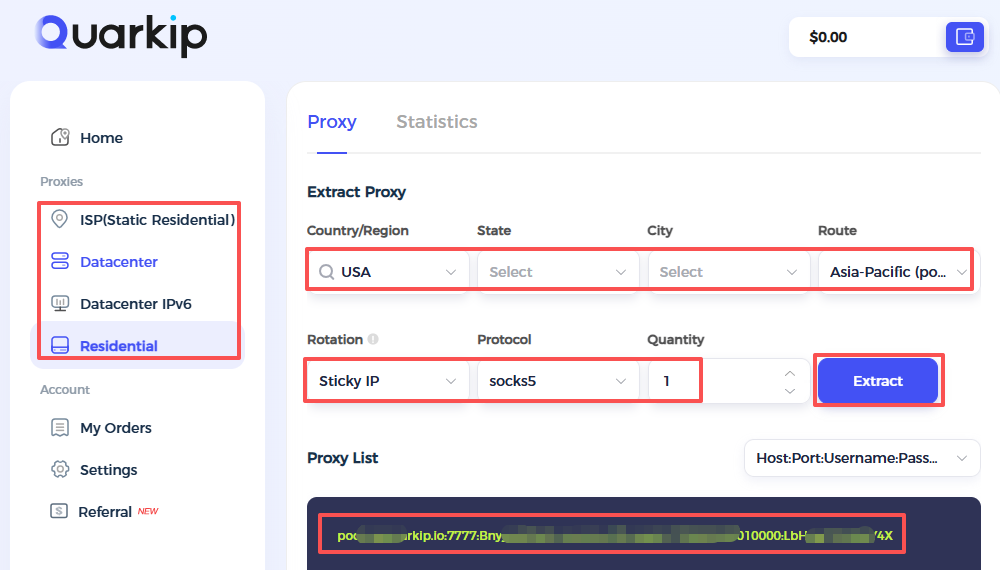
- Choose the proxy type that best fits your needs and complete your purchase.
- After your purchase is complete, go to the corresponding proxy product page to view your proxy details:
IP:Port:Username:Password
Step 3: Configure the Proxy in CosLogin
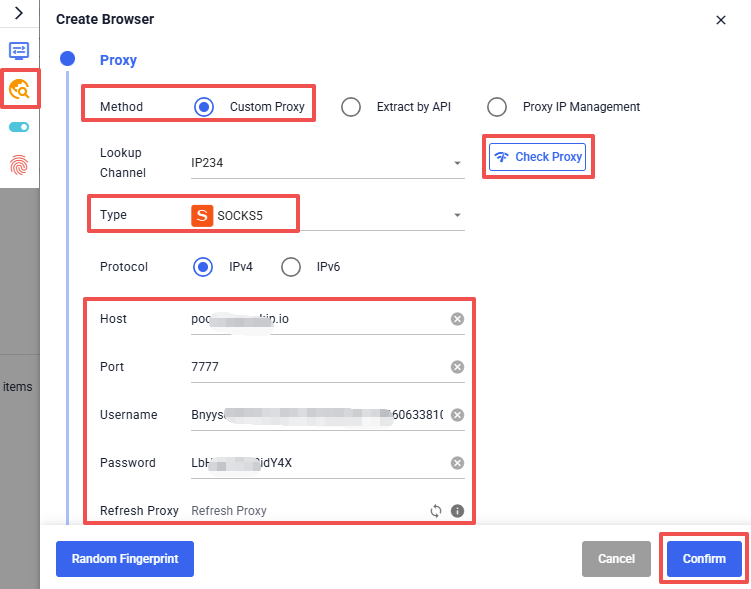
- In [Proxy Settings], select [Custom Proxy] and choose your [Proxy Type], such as SOCKS5.
- Enter the proxy details provided by QuarkIP:
IP:Port:Username:Password
- Click [Confirm] to save the browser.
Step 4: Launch the Browser
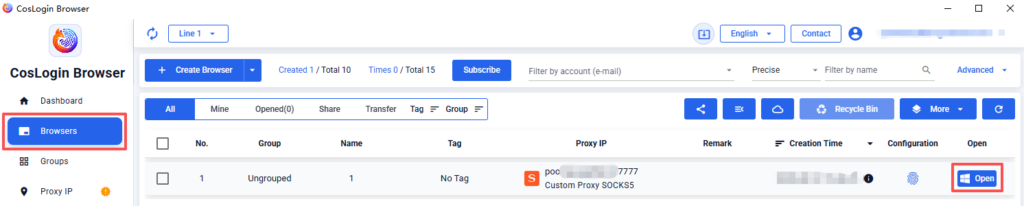
In the browser list, click [Open] to launch the browser and start browsing through your QuarkIP proxy