
Skip to content

QuarkIP LOGOHelpCenter

Login

QuarkIP LOGOHelpCenter

Login

Quick Start Guides

6
  • What is QuarkIP?
  • How to Sign Up for QuarkIP?
  • How to Top-Up?
  • How to Purchase a Proxy?
  • How to reset proxy password
  • What is the Referral Program?

FAQ

9
  • Which countries’ proxies do we offer?
  • What happens if I don’t use all my traffic?
  • Can I extend the plan of my proxy service?
  • How Can I Contact You?
  • Are the proxies I buy from QuarkIP exclusive?
  • How Fast Are QuarkIP Proxies?
  • What’s the Difference Between Datacenter Proxies and Datacenter IPv6 Proxies?
  • What’s the Difference Between ISP and Residential Proxies?
  • What Kind of Free Trial Plans Do You Offer?

Billing and Pricing

6
  • Do you offer refunds for your proxies?
  • Why does my purchased proxy show as “In progress”?
  • Where can I get an invoice for my order?
  • Does QuarkIP offer discounts?
  • Can I cancel my order at any time?
  • What payment methods does QuarkIP support?

Residential Proxies

9
  • How to Configure TTL for Sessions
  • How to Manually Switch IP While Maintaining Sticky Proxy
  • How to Claim Your 200MB Free Trial
  • Where can I view my traffic usage?
  • How to Whitelist an IP Address
  • Can I change my password?
  • Will the traffic I purchase expire?
  • How to Use Residential Proxies
  • How to Purchase Residential Proxies

Datacenter Proxies

7
  • How do I purchase datacenter proxies?
  • How to use datacenter proxies?
  • Can I use the same proxy on multiple devices at the same time?
  • How can I export all Datacenter proxies?
  • How to change my proxy protocol?
  • Do datacenter proxies support refunds?
  • How can I extend my datacenter proxy plan?

ISP Proxies

7
  • How do I purchase ISP proxies?
  • How to use ISP proxies?
  • How to change my proxy protocol?
  • How can I export all ISP proxies?
  • Can I get a refund for ISP proxies?
  • Can I use a ISP proxy on multiple devices at the same time?
  • How can I extend the duration of my static residential proxy plan?

Datacenter IPv6 Proxies

8
  • How to check if a website supports IPv6
  • How do I purchase datacenter IPv6 proxies?
  • How to use datacenter IPv6 proxies?
  • Can I use the same proxy on multiple devices at the same time?
  • How to export all Datacenter IPv6 proxy data
  • How do I change the proxy protocol?
  • Is the Datacenter IPv6 proxy eligible for a refund?
  • How to Extend Your Datacenter IPv6 Proxy Plan

Static Proxy Integration Guides

14
  • How to Use a Static Proxy on BitBrowser
  • How to Set Up a Static Proxy on DICloak
  • How to Set Up a Static Proxy on Hidemium
  • How to Set Up a Static Proxy on Android
  • How to Set Up a Static Proxy on IOS
  • How to use QuarkIP Static Proxy with Safari
  • How to use QuarkIP Static Proxy with MoreLogin
  • How to Use QuarkIP Static Proxy with HubStudio
  • How to Use QuarkIP Proxy with Firefox
  • How to Use QuarkIP Proxy with Chrome
  • How to Use QuarkIP Proxy with AdsPower
  • How to Use QuarkIP Proxy with Shadowrocket
  • How to Use QuarkIP Proxy with Dolphin
  • How to Set Up a Proxy on V2Ray

Residential Proxy Integration Guides

15
  • How to Use a Residential Proxy on BitBrowser
  • How to Set Up a Resdiential Proxy on CosLogin
  • How to Set Up a Resdiential Proxy on DICloak
  • How to Use QuarkIP Residential Proxy with Shadowrocket
  • How to Set Up a Residential Proxy on Hidemium
  • How to Set Up a Residential Proxy on Android
  • How to Set Up a Residential Proxy on IOS
  • How to Set Up a Residential Proxy on V2Ray
  • How to Use QuarkIP Residential Proxy with HubStudio
  • How to Use QuarkIP Residential Proxy with Safari
  • How to Use QuarkIP Residential Proxy with MoreLogin
  • How to Use QuarkIP Residential Proxy with Dolphin
  • How to Use QuarkIP Residential Proxy with Adspower
  • How to Use QuarkIP Residential Proxy with Chrome
  • How to Use QuarkIP Residential Proxy with Firefox
api

API

6
  • API Authentication and Response Formats
  • Getting Started with the Static Proxy API
  • Get Static Proxy Transaction Details
  • Renew Static Proxy
  • List Static Proxy
  • API Errors and Troubleshooting
View Categories
  • HelpCenter
  • Integration Guides
  • Static Proxy Integration Guides
  • How to Use a Static Proxy on BitBrowser

How to Use a Static Proxy on BitBrowser

1. Download and install BitBrowser. If you do not have an account, create one and sign in.
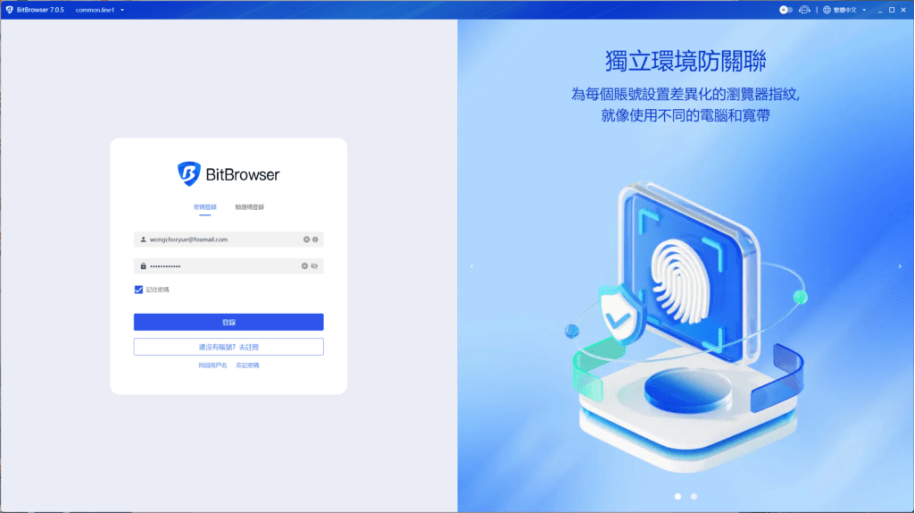
Download BitBrowser

BitBrowser sign-in page

2. After signing in, select “Proxy IP” from the left-hand menu.
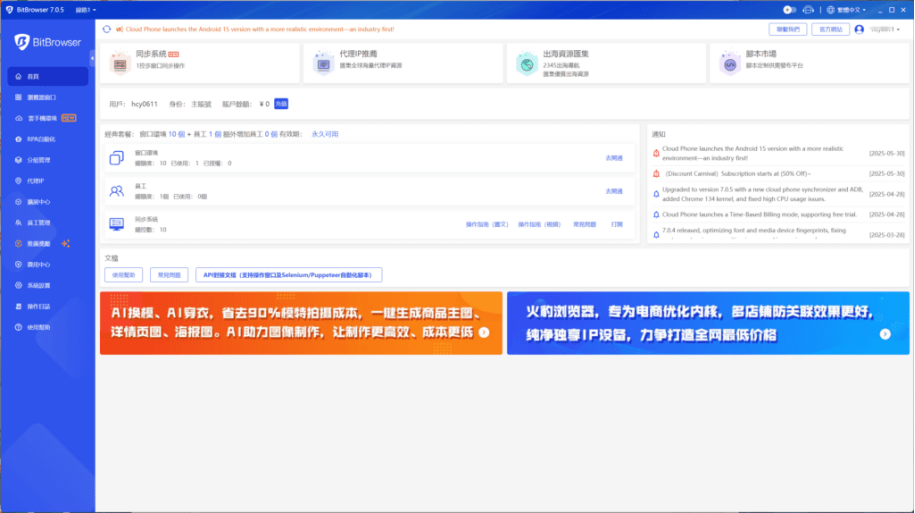
The “Proxy IP” entry in the BitBrowser dashboard

3. On the proxy management page, click “Add Proxy.”
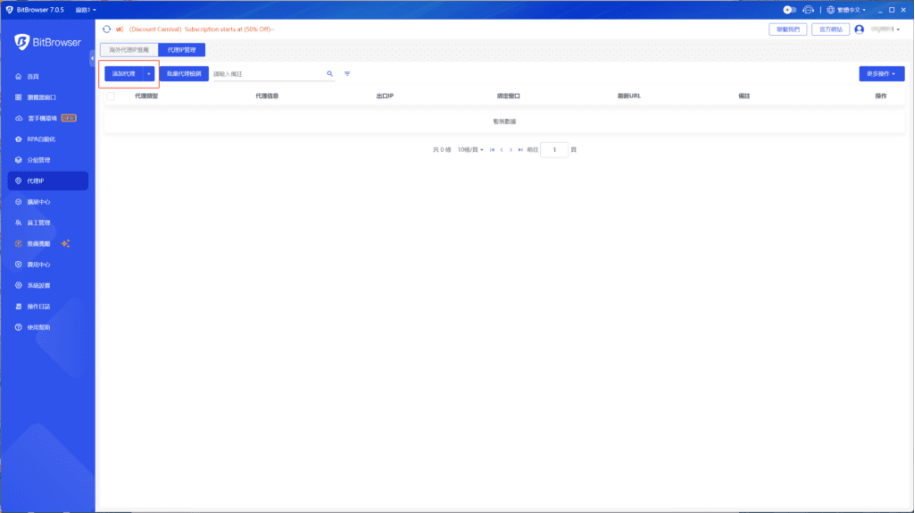
The “Add Proxy” button on the proxy management page

4. Return to QuarkIP and open the list of static proxies you have purchased. This guide uses a United States ISP proxy as an example. The setup process is the same for datacenter proxies.

  • Proxy allocation usually takes 2–3 minutes while QuarkIP confirms the payment and assigns the proxy. The status will show “Allocating” until this process is complete
  • QuarkIP static proxies support both HTTP and SOCKS5. You do not need to change the port when switching protocols
  • Prepare the proxy protocol, host, port, username, and password

Related guide: How to Purchase ISP Proxies
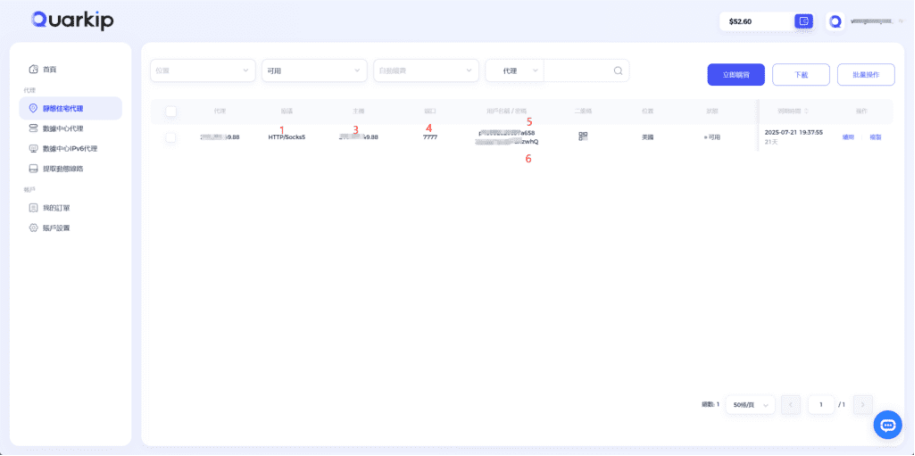
Static proxy credentials in the QuarkIP dashboard

5. Enter the QuarkIP proxy details in the corresponding BitBrowser fields.

  • Proxy Type: Select the same protocol you are using in QuarkIP, either HTTP or SOCKS5
  • Proxy Host: Enter the host shown in QuarkIP
  • Proxy Port: Enter the port shown in QuarkIP
  • Proxy Username: Enter the username shown in QuarkIP
  • Proxy Password: Enter the password shown in QuarkIP

Check the proxy after confirming that each field is correct. Save the proxy when the test succeeds.
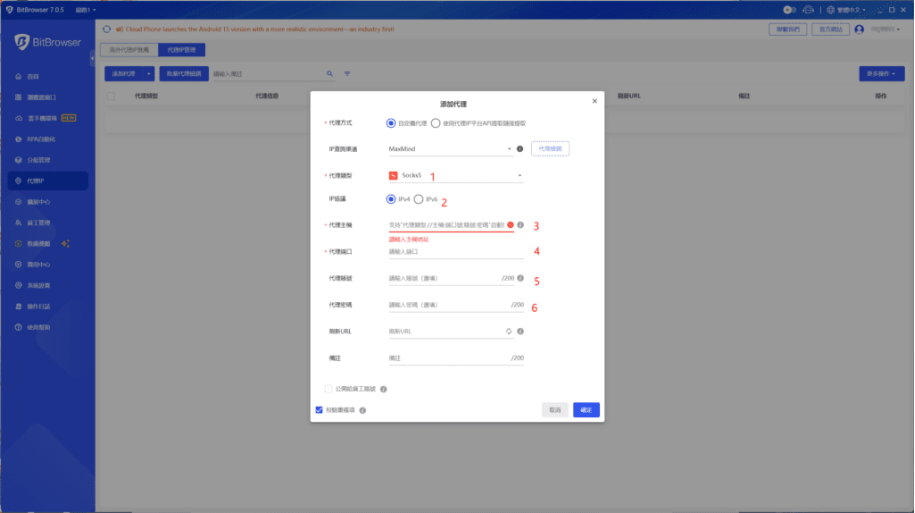
Adding the QuarkIP proxy in BitBrowser

6. Return to “Browser Profiles” and click “Add” to create a new browser profile.
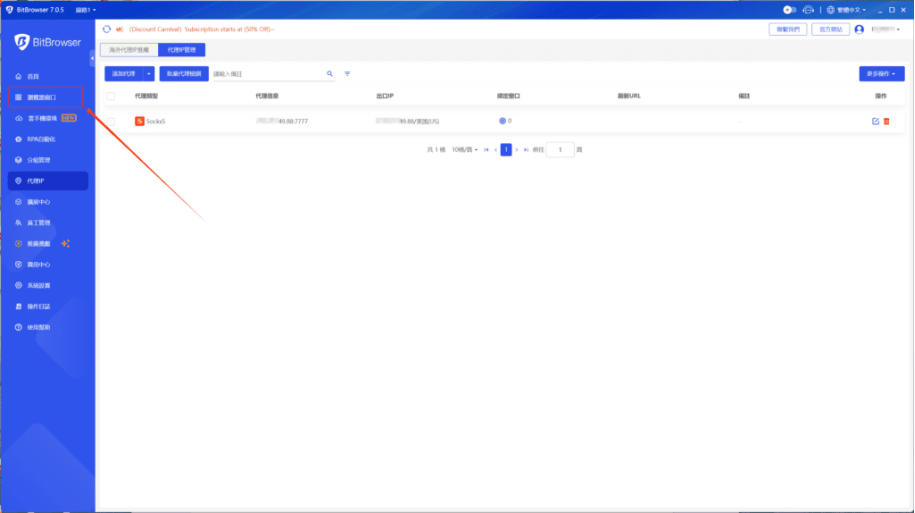
Returning to the browser profile list

7. Complete the other profile settings. Under proxy management, select the QuarkIP static proxy you just added, and then save the profile.
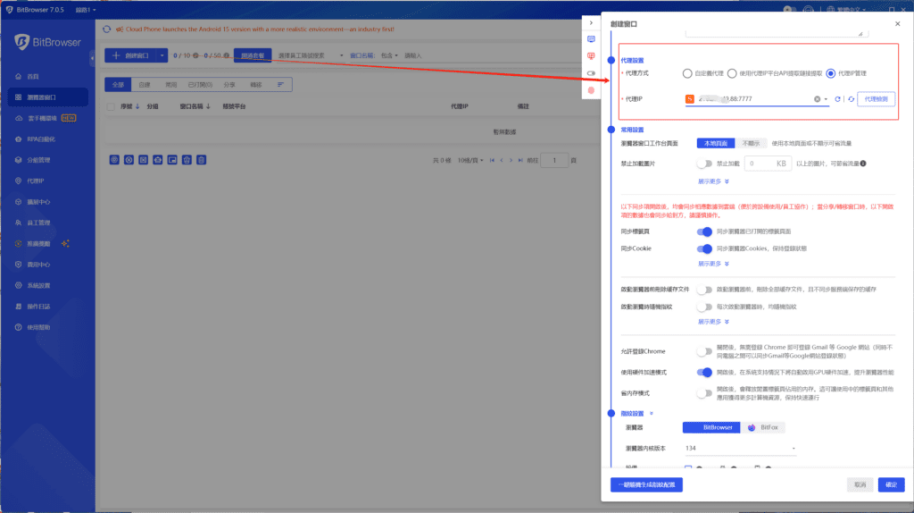
Creating a browser profile and selecting the proxy

8. Click “Open” next to the browser profile. In the new browser window, visit an IP-checking website and confirm that the displayed IP address and location match the proxy you selected.
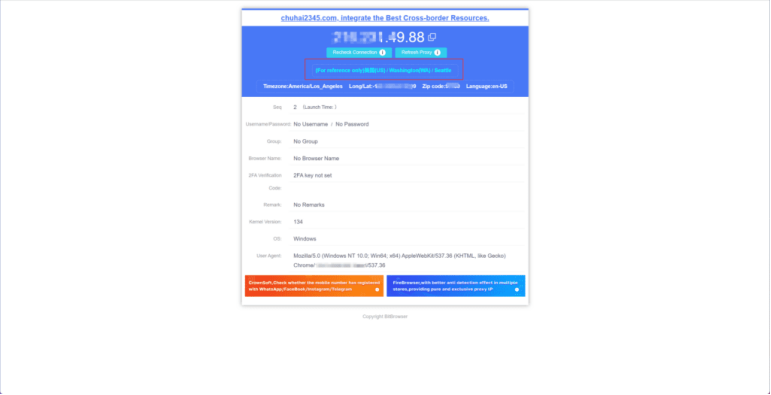
Opening the browser profile and checking the proxy IP

The QuarkIP static proxy is now ready to use in BitBrowser.

Share This Article :

  • Facebook
  • X
  • LinkedIn
  • Pinterest
How to Set Up a Proxy on V2RayHow to Set Up a Static Proxy on DICloak